> For the complete documentation index, see [llms.txt](https://docs.revenium.io/llms.txt). Markdown versions of documentation pages are available by appending `.md` to page URLs; this page is available as [Markdown](https://docs.revenium.io/track-and-control-costs/monitor-infrastructure-costs.md).
# Monitor Infrastructure Costs
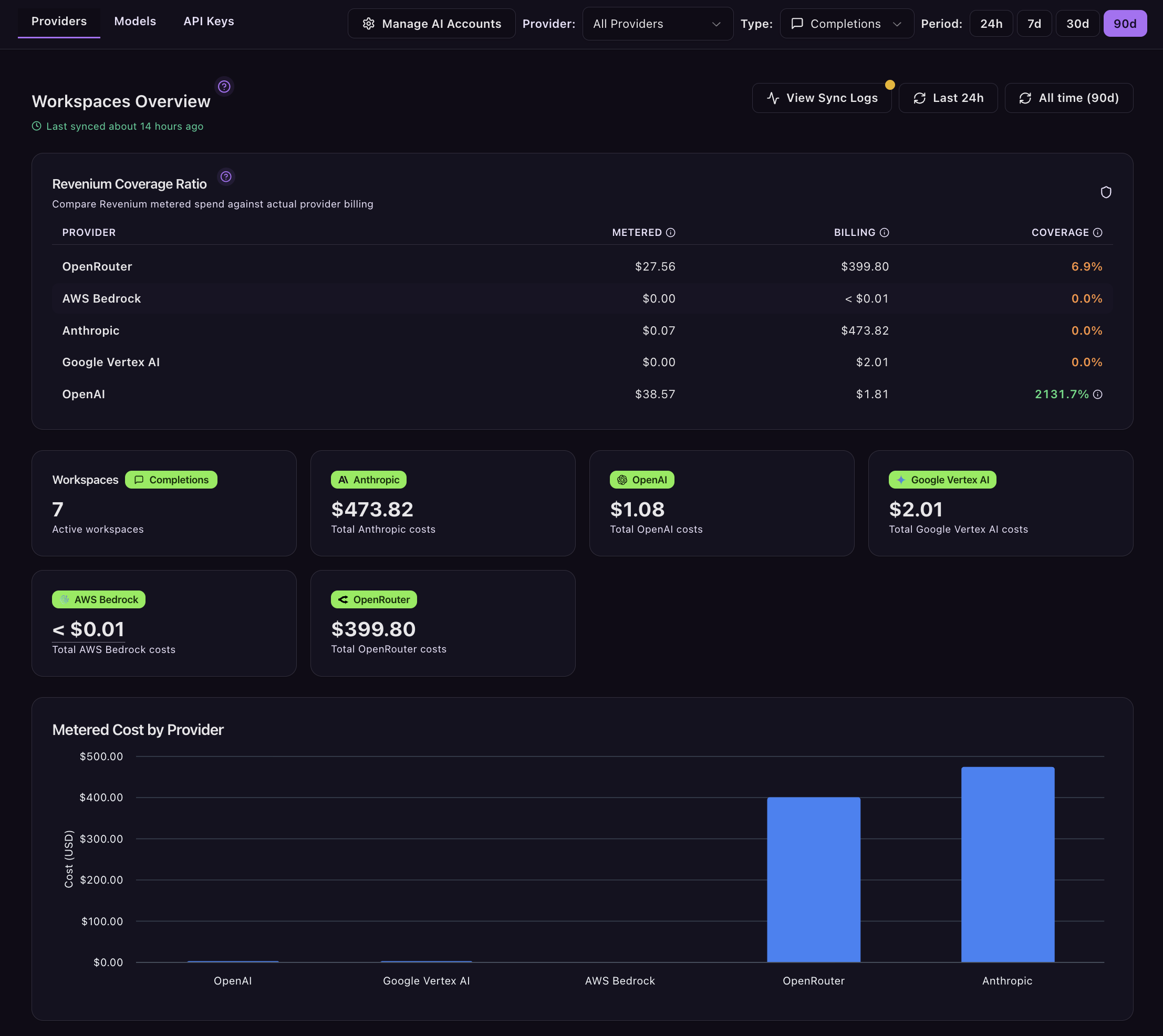
Before you can control AI spend, you need to know where it's actually coming from. Revenium connects directly to your AI provider accounts and immediately surfaces the complete picture — what you're spending, where it's going, and how much of it you actually have visibility over.
Connect your provider first: see [Connecting Providers](/get-started/quickstart/connecting-providers.md).
Head to **Integrations > Providers** to connect your accounts, then navigate to **Overview** to see your spend broken down across three views.
> 💡 **Getting the most from this section:** Provider-level data gives you top-down visibility across your entire AI footprint. For deeper attribution — by customer, product, or feature — make sure you are also passing metadata when you [Instrument Your Code](/track-and-control-costs/instrument-your-code.md). The two work together.
***
### 1. Providers: How Much of Your Spend Can You Actually See?
The most important number here isn't your total cost — it's your **Coverage**: Metered as a share of Invoiced.
This tells you what percentage of your provider bill is actively metered and under Revenium's financial control. Anything below 100% is unaccounted spend: workloads running outside your instrumented infrastructure, forgotten scripts, or environments that haven't been connected yet. Until those gaps are closed, you're making budget decisions on incomplete information.
Alongside coverage, you can see:
* **Cost by workspace:** Break spend down by internal team or environment — production vs. staging, one business unit vs. another — so cost ownership is clear rather than pooled into a single bill nobody owns.
* **Period-over-period comparison:** See immediately whether total spend is trending up or down, without waiting for a monthly invoice to tell you something went wrong two weeks ago.
* **Provider credits and net spend:** For providers such as AWS Bedrock and Google Vertex AI, Revenium can track provider-issued credits and apply them to billing analytics. This helps distinguish gross AI usage from the net spend you actually pay after credits are applied.
**Invoiced spend charts.** The provider cost dashboard includes a dedicated invoiced-spend chart that visualizes your provider spend over time, so you can see the shape of the bill rather than just its total. The chart is team-scoped: it respects the team currently selected in the product, so the spend you see lines up with the active team rather than mixing teams together. Switch teams from the selector and the chart re-scopes to that team's provider spend.
***
### 2. Models: What Are You Actually Paying Per Token?
Provider pricing pages show list prices. Revenium shows you what you're actually paying, calculated against your real usage patterns.
**Model Efficiency** gives you the true cost per million tokens for every active model in your organization, normalised across providers so you can make direct comparisons. A model that looks cheap in a benchmark can look very different once your specific workloads are factored in.
* **Model Efficiency table:** Rank every active model by cost percentage, request volume, average tokens per USD, and trend. Use it to identify models whose cost share is growing faster than their request share — a reliable signal that usage patterns have shifted in a way worth investigating.
* **Period-over-period comparison:** Validate whether a recent model swap has delivered the savings it promised, or whether costs have quietly crept back up.
***
### 3. API Keys: Find the Spend You Didn't Know You Had
API keys are where financial accountability breaks down in most organizations. The number of active keys is almost always higher than anyone expects, and a meaningful portion of them are typically operating entirely outside your metering coverage.
* **API Key Analytics:** See every active key across your connected providers with a full breakdown of cost, token volume, request count, and trend. Keys that are spending without appearing in your metered traffic are either candidates for instrumentation or candidates for deactivation — either way, they shouldn't stay invisible.
* **Cost concentration:** Quickly identify whether spend is distributed across many keys or driven by a handful. Knowing where it's concentrated tells you where to focus your instrumentation effort first.
***
### 4. Users: Who Is Spending on Claude Enterprise?
A Claude Enterprise bill arrives as an organization total. That tells you what the organization spent and nothing about where it went, which makes a rise impossible to act on and a chargeback impossible to defend. The **Users** view breaks that spend down to the person who spent it. Find it at **Intelligence > Providers > Users**.
Two things are worth knowing before you read the numbers.
Seat subscription charges are not included. Anthropic bills seats separately from consumption, so this view is a picture of per-person spend, not of your whole Claude Enterprise invoice. Use it to see who is consuming, and your seat count for what the seats cost.
The view fills in as spend is attributed to people rather than appearing complete on day one. Where a selection has no per-person breakdown available, the view says **Per-user costs are not reported for this selection**; where the breakdown exists but nothing has been attributed yet, it says **No spend is attributed to a person yet**. Both are statements about coverage, not about spend being zero.
To allocate this billed spend to your departments, see [Allocating billed Claude Enterprise spend to departments](/track-and-control-costs/attribute-spend-to-departments.md#allocating-billed-claude-enterprise-spend-to-departments).
***
### 5. Comparison: Are You Paying the Going Rate, and What Is It Buying?
The three views above each answer a question about one dimension of your spend. **Comparison** puts your vendors side by side so the question becomes a choice rather than a report. Find it at **Intelligence > Providers > Comparison**.
**Vendor scorecards** rank each connected vendor on what you actually pay for the traffic you actually send, so a vendor whose list price looks competitive but whose real blended rate is not shows up as what it is. Rates are given both blended and with cache excluded, because a vendor with a high cache rate and a vendor with cheap fresh tokens are cheap for different reasons and only one of those holds if your workload changes.
Where a scorecard includes coding-assistant usage on a seat plan, it shows that usage, valued at list API rates, apart from the usage that reaches the invoice, and states it as a multiple of the seat bill: the seat-plan usage divided by your saved seat plan cost, prorated to the period, so you can see what each dollar of seat spend bought. If no seat plan is saved for that vendor, the scorecard asks you to save its seat plan tiers in settings.
**Unit economics** ties that spend to work delivered. Where a code host is connected, the table adds a **Cost/PR** column, or **Cost/MR** where your host uses merge requests, so you can see what a merged change costs by vendor rather than only what a million tokens costs. Until a code host is connected there is nothing to divide the spend by, and the column reports that rather than showing a figure.
Two things shape what you see in that column. A merged change counts toward a vendor only where the assistant that helped write it identifies itself, which out of the box covers Claude Code, Cursor and Codex CLI. Claude Cowork, Gemini CLI and GitHub Copilot ship with no default detection signature, so out of the box their spend contributes no attributed change. A signature for one of them can be configured on the code-host integration, keyed by assistant, through the integration metadata API rather than the settings dialog: the dialog's pattern field feeds only the overall AI-assisted count and adds to no vendor's column. Work done with an assistant that leaves no such trace still contributes spend, but no attributed change, so an empty cell means nothing was attributed to that vendor in the period rather than that your source-control sync is incomplete. And a change assisted by more than one vendor's tools counts toward each of them, so the per-vendor figures deliberately do not sum to a single portfolio number.
**Cache economics** and **Spend mix over time** complete the picture: how much of each vendor's bill is warm context being reused, and how the balance between vendors has moved across the period.
Where a vendor's traffic is billed at token rates rather than covered by a subscription, you can choose to have those billed rates used as the basis for the comparison, so the numbers reflect what you are invoiced rather than an estimate.
> **Through MCP, conversationally.** The questions this page is built around — where is my spend, what's driving it, which keys are responsible — are exactly the kind of questions an AI assistant connected to Revenium via the MCP Server can answer in chat. Ask "what's my total AI spend this month and which providers does it break down to?", "which models have the highest cost share right now?", or "are any API keys driving an unexpected portion of the bill?" The agent runs the queries, breaks the data down across providers, models, customers, agents, or API keys, and tells you what it finds. Useful for the kind of monthly or weekly check-in that's easy to skip when there's no room in the dashboard rotation.
---
# Agent Instructions
This documentation is published with GitBook. GitBook is the documentation platform designed so that both humans and AI agents can read, navigate, and reason over technical content effectively. Learn more at gitbook.com.
## Querying This Documentation
If you need additional information that is not directly available in this page, you can query the documentation by asking a question.
Perform an HTTP GET request on the following URL with the `ask` and `goal` query parameters:
```
GET https://docs.revenium.io/track-and-control-costs/monitor-infrastructure-costs.md?ask=&goal=
```
`ask` is the immediate question: it should be specific, self-contained, and written in natural language.
`goal` is what the user is ultimately trying to achieve, the reason they need the answer. Sharing it helps GitBook give you a better, more relevant answer. A goal is most helpful when it describes the outcome the user wants rather than restating the question. For example, with `ask=how do I create an API token`, a goal like `automate deployments from our CI pipeline` lets GitBook tailor the answer to that use case.
The response will contain a direct answer to the question and relevant excerpts and sources from the documentation.
Use this mechanism when the answer is not explicitly present in the current page, you need clarification or additional context, or you want to retrieve related documentation sections.