> For the complete documentation index, see [llms.txt](https://docs.revenium.io/llms.txt). Markdown versions of documentation pages are available by appending `.md` to page URLs; this page is available as [Markdown](https://docs.revenium.io/track-and-control-costs/build-custom-dashboards-and-charts.md).
# Build Custom Dashboards & Charts
Revenium's Intelligence dashboards answer the most common questions about AI spend and performance. Custom dashboards and charts go further — giving you the flexibility to build exactly the views your business needs, scoped to the metrics, customers, agents, and time windows that matter to your team right now.
Find your dashboards under **My Dashboards** in the left sidebar, and your custom charts under **Chart Builder**.
***
### :square: Dashboards
A dashboard is a collection of charts organised around a purpose. The most useful ones are built with a specific audience in mind — a weekly finance review, a post-incident engineering debrief, a per-customer profitability summary for your account team.
#### Building a Dashboard
1. Click **+ Add Dashboard** and give it a name and description that will mean something to whoever opens it.
2. Click **+ Add Chart** to pick from the pre-built library — searchable, with a short description of what each chart shows.
3. Arrange your charts on the canvas, then hit **Done Editing** when you're ready.
Each chart can be shared, exported as a PNG or CSV, or copied to your clipboard directly from the dashboard.
#### Deleting a Dashboard
You can remove a custom dashboard directly from its row in **My Dashboards**. Deleting asks you to confirm first, so a dashboard isn't removed by accident. System dashboards — the built-in Intelligence views — and dashboards you only have read-only access to stay protected and can't be deleted, so managing your own custom views never puts the standard reporting at risk.
#### The Pre-Built Chart Library
The library covers the most common reporting needs across cost, revenue, performance, and profitability. A few highlights:
* **Customer Cost Over Time** — how spend per customer trends day by day, useful for spotting who's growing fastest before it becomes a billing conversation.
* **Customer Profitability** — cost against margin per customer, so you can see at a glance who's profitable and who isn't.
* **Task Performance by AI Model** — cost and time per task broken down by model, for validating whether a model change is actually performing better.
* **Token and Tool Cost** — separates raw token spend from external tool call costs over time, essential for agentic workflows where tool costs frequently dwarf token costs.
* **Revenue / Product** — revenue generated per product tier, for pairing against cost data to get to true margin.
* **Provider Comparison** — a prefilled template that opens in the Chart Builder with provider billing and metered usage placed together, so you can line up what a provider bills against the usage Revenium meters for it without building the view from scratch. Add it to any dashboard like any other chart, then adjust the metric, grouping, filters, or time window to fit your team.
***
### :pen: Custom Charts
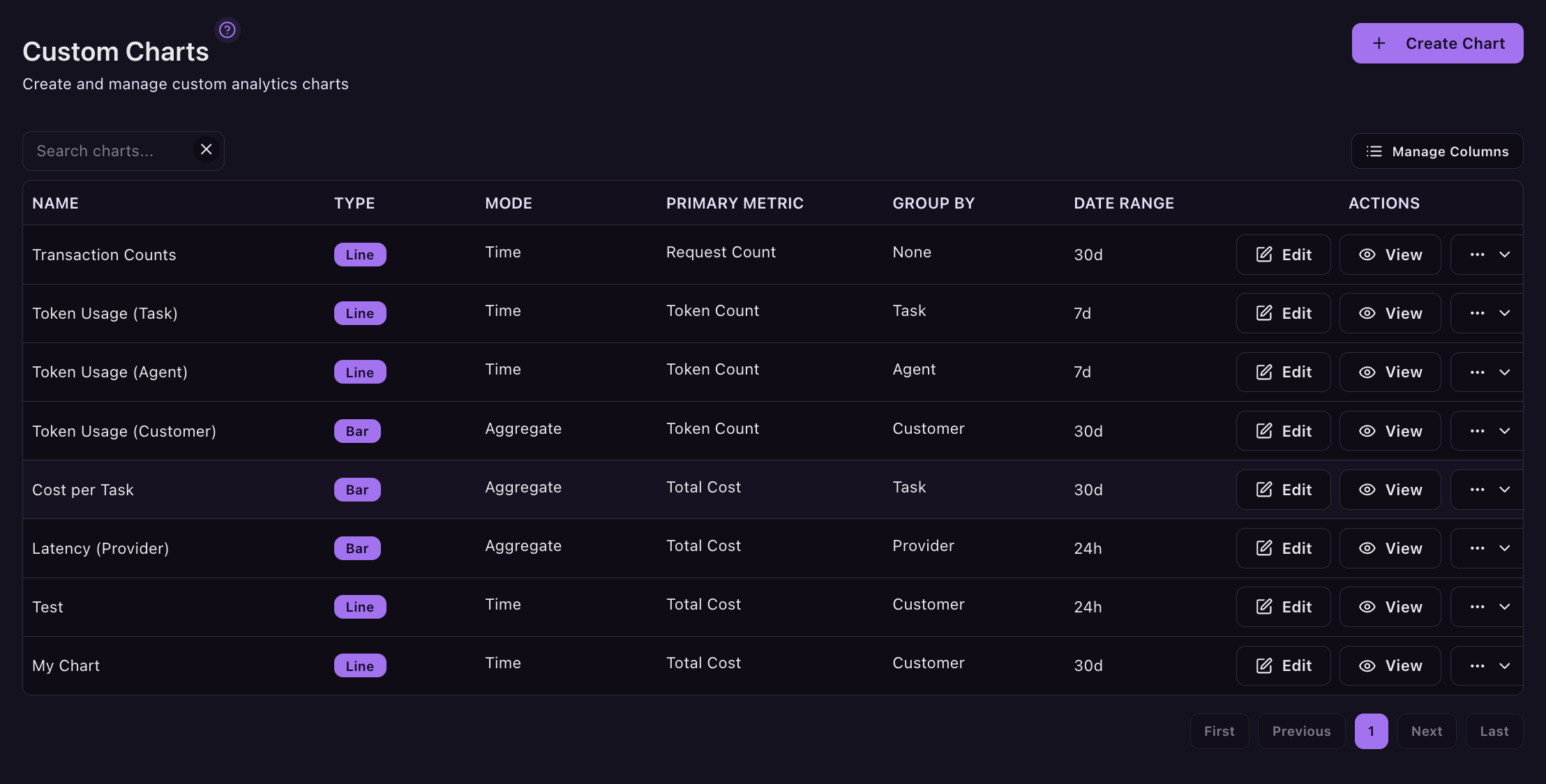
For more specific questions — the metric combination that maps to how your team thinks, or a view scoped to a single customer, agent, or environment — the chart builder gives you full control.
Head to **Chart Builder** and click **+ Create Chart**. As you configure your chart, a live preview updates in real time alongside a configuration summary, so you can see exactly what you're building and catch anything worth adjusting before you save.
#### Your Metric
The base metrics cover everything Revenium tracks: Total Cost, Request Count, Token Count (input and output separately), Latency, Error Count and Rate, Image Count, Duration, Character Count, and Credits Consumed.
Pair that with a calculation — Total, Average, Per-Request Average, Per-Token Average, Per-Entity Average, Median, or Maximum — and the question your chart answers becomes precise. Total Cost tells you how much you spent. Per-Request Average tells you whether efficiency is improving.
#### How the Data is Grouped
The Primary Group By controls how the data is sliced — by Customer, Model, Provider, Agent, Product, Task, Subscriber, Department, or Modality. This is where a single metric becomes a genuinely useful view. Total Cost grouped by Agent shows which agents are burning the most. Error Rate grouped by Model tells you whether a particular model is underperforming. Latency grouped by Task shows which operations are slow regardless of which model handles them.
Grouping by Department rolls each person's spend up to the top-level department they sit under, so a department whose people all belong to sub-departments still appears in the chart instead of disappearing into them. Cost control rules deliberately do not roll up this way. A rule scoped to a department matches its direct members only, so a chart and a rule scoped to the same department can cover different people.
A chart is drawn from the 500 largest groups. If there are more, the chart tells you how many groups exist and that you are seeing a subset, rather than presenting a truncated list as the whole picture.
#### Filters
Filters let you scope a chart to exactly the slice of data you care about — a specific customer, a single environment, a particular task type, an error reason, or only streamed responses. A chart tracking Total Cost by Model is useful. The same chart filtered to your production environment and scoped to a single customer tier is actionable.
#### Time Window
Date ranges run from the last hour through to the last 365 days, with a custom range for anything in between. Time grain can be set to daily or weekly, or left on Auto for Revenium to choose the most readable resolution for the window you've selected.
> **💡 Tip:** Once saved, any custom chart is available to add to any dashboard — giving you a reporting layer that reflects exactly how your team thinks about AI performance, not just how the platform does.
***
### :building: Examples Worth Building
**"Is our Enterprise tier profitable?"** Total Cost, grouped by Product, filtered to your Enterprise tier — alongside a Revenue / Product chart on the same dashboard to see margin in context.
**"Which customers are consuming disproportionately?"** Total Cost, Per-Entity Average calculation, grouped by Customer, Focus Method set to Top N Items. Surfaces the highest-consuming customers without the rest of the data obscuring them.
**"Is this agent getting more expensive over time?"** Total Cost, grouped by Agent, filtered to a specific agent, Line Chart over Last 90 Days. A rising line not matched by a rise in request count is a signal worth investigating.
**"Where are errors actually happening in production?"** Error Rate, Average calculation, grouped by Model, filtered to your production environment. Shows which models are failing where it matters, not just in aggregate.
---
# Agent Instructions
This documentation is published with GitBook. GitBook is the documentation platform designed so that both humans and AI agents can read, navigate, and reason over technical content effectively. Learn more at gitbook.com.
## Querying This Documentation
If you need additional information that is not directly available in this page, you can query the documentation by asking a question.
Perform an HTTP GET request on the following URL with the `ask` and `goal` query parameters:
```
GET https://docs.revenium.io/track-and-control-costs/build-custom-dashboards-and-charts.md?ask=&goal=
```
`ask` is the immediate question: it should be specific, self-contained, and written in natural language.
`goal` is what the user is ultimately trying to achieve, the reason they need the answer. Sharing it helps GitBook give you a better, more relevant answer. A goal is most helpful when it describes the outcome the user wants rather than restating the question. For example, with `ask=how do I create an API token`, a goal like `automate deployments from our CI pipeline` lets GitBook tailor the answer to that use case.
The response will contain a direct answer to the question and relevant excerpts and sources from the documentation.
Use this mechanism when the answer is not explicitly present in the current page, you need clarification or additional context, or you want to retrieve related documentation sections.