> For the complete documentation index, see [llms.txt](https://docs.revenium.io/llms.txt). Markdown versions of documentation pages are available by appending `.md` to page URLs; this page is available as [Markdown](https://docs.revenium.io/track-and-control-costs/analyze-roi-and-unit-economics.md).
# Analyze ROI & Unit Economics
Once your code is instrumented and sending telemetry, Revenium instantly translates your raw AI logs into financial realities. This section of the platform is where engineering, finance, and product teams align to measure the true profitability of your AI features.
By navigating to the **Costs & Revenue** section in your sidebar, you unlock several targeted dashboards designed to expose hidden costs and calculate exact profit margins.
> 💡 **Prerequisite:** To get the most out of these dashboards, make sure each metering call carries attribution metadata — at minimum, who the customer is, which product they're on, and what kind of task the call was for. Revenium uses these tags to aggregate your unit economics. See [Instrument Your Code → Business Attribution](/track-and-control-costs/instrument-your-code.md#enrich-calls-with-business-attribution) for the full list.
***
### 1. The ROI Dashboard: Measure Business Outcomes
*The ultimate high-level view of your AI's profitability.*
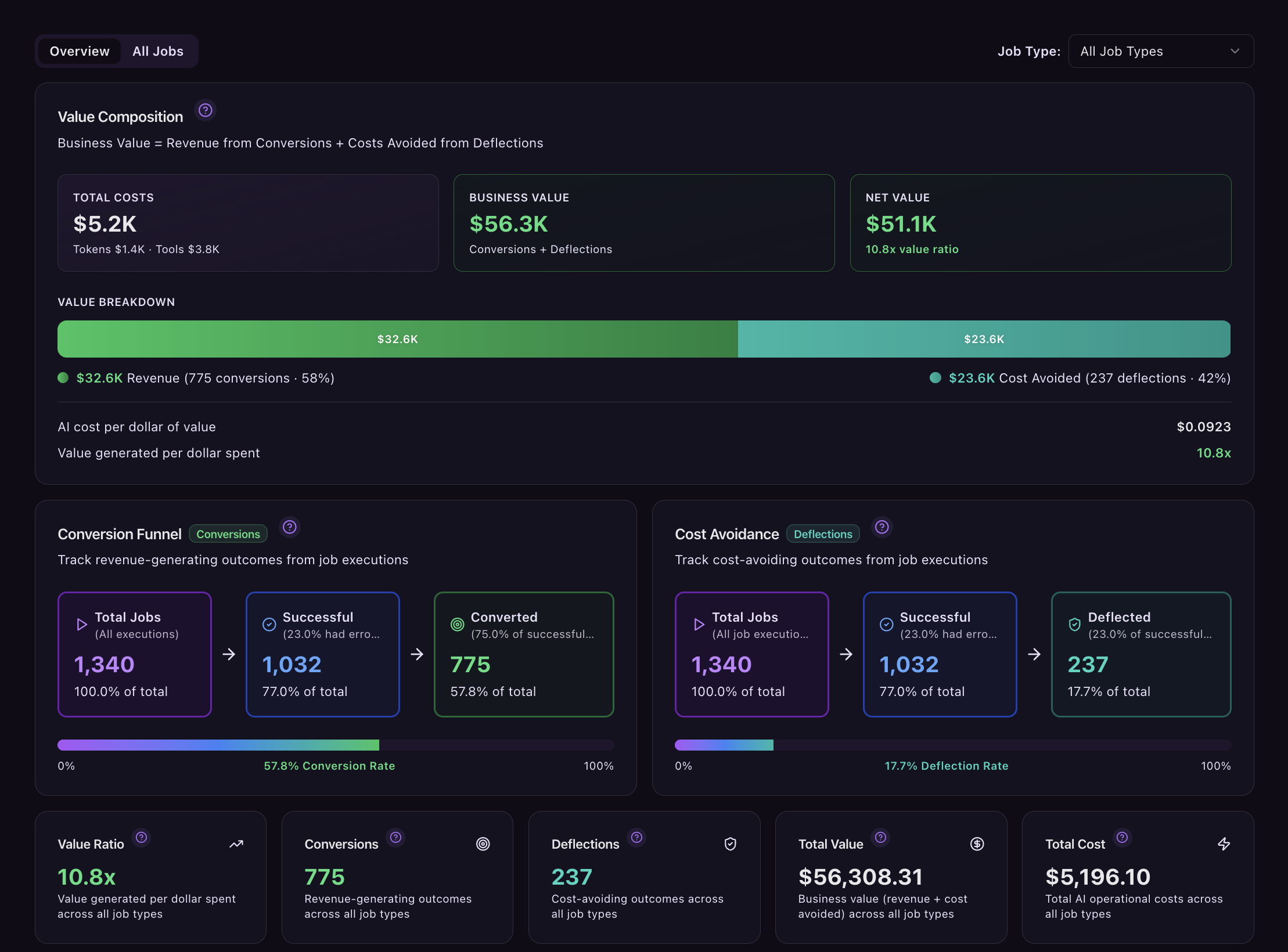
The ROI tab shifts the focus from engineering metrics to business metrics. It helps you answer: **"Is our AI actually making us money?"**
* **The Conversion Funnel:** Track the drop-off between a job starting, a technically successful LLM execution, and a completed business conversion (e.g., a closed sale or deflected ticket).
* **Total Value vs. Operational Cost:** Compare the estimated revenue generated by successful conversions directly against the total cost of the AI compute to calculate your true ROI percentage.
The ROI dashboard is the *view*; outcomes are the data that feeds it. Without outcome reporting (see [AI Outcomes](/instrument-your-agents/agent-outcomes.md)), the dashboard has cost but no value side to ratio against. Every reported outcome becomes a row on the Conversion or Cost Avoidance funnel and contributes to the headline Value Ratio.
#### Review individual jobs
Open **Intelligence → Costs & Revenue → ROI → All Jobs** to find a workflow execution. Search by job ID or name, filter by status, outcome, or outcome value, then select a row to open its job detail. The list shows **Total Cost** by default; use **Manage Columns** to add token, media, tool, and total-token breakdowns.
The job detail shows total attributed cost, tokens, units produced, and return on investment. Its **Outcome timeline** shows recorded facts and their sources; **Cost detail by step and tool** lists AI calls and declared overhead when available. Use these together to see which reported outcome and costs support the return shown for that job.
You need job executions with AI data and reported outcomes to see a useful value comparison. If monetization is missing, return on investment reads **Not configured**. A job's cost covers its AI calls and any declared overhead. Tool and human time are counted for the job type as a whole, so the **Job Type** tab, described below, shows the fully loaded figure. If the AI call list is incomplete, the displayed cost is understated and the return may be too high.
#### Compare a job type with the work it replaced
Choose a job type under **Job Type** at the top of the ROI dashboard, then open the **Job Type** tab. **Cost per unit** is the fully loaded cost of one unit of that work. Open its **Cost stack** to see each line as a total and per unit: AI tokens, other AI charges, tools, human time and overhead. Each line carries a label saying where its figure came from, such as measured or declared.
To measure savings, select **Edit job type**. In the same dialog, add a baseline for the manual process: the cost of one unit before AI, human minutes per unit, quality rate and hourly rate, from a date you choose. You can also add overhead per unit that is not metered elsewhere, such as licenses or review time.
**Before and after** then puts the manual process beside the AI workflow on cost per unit, human minutes per unit, quality and throughput. **Savings vs before** shows the saving against that baseline. Each baseline you save becomes a new version, so savings already reported can be reproduced later.
### 2. Top Movers: Spotting Rapid Cost Changes
*Identify exactly who or what is driving sudden spikes in your bill.*
Instead of hunting through line charts to find anomalies, the **Top Movers** tab immediately highlights the biggest period-over-period changes in your AI spend.
* **Track the Deltas:** See exactly which entities have the highest percentage increase (or decrease) in cost compared to the previous period.
* **Cross-Entity Visibility:** Instantly view the biggest movers across four key dimensions: **Agents, Models, Customers, and Products**.
* **Catch "New" Spend:** Quickly spot if a newly deployed agent, a new customer, or a newly swapped model has suddenly started incurring significant costs.
### 3. Tasks & Agents: Granular Cost Breakdown
*Identify exactly which workflows are consuming your budget.*
If your overall costs are spiking, the **Tasks** and **Agents** tabs help you isolate the culprit.
* **Task Cost Trends:** Group your AI spend by specific operations (e.g., "document\_summarization" vs. "deep\_research"). See the average cost per request by task type, allowing you to compare if a specific model is suddenly becoming too expensive for a routine task.
* **Agent Spend Over Time:** If you are running autonomous agents, track their individual burn rates. Easily spot if a specific agent (like your "support\_triage\_agent") is looping or calling external APIs too frequently compared to others.
### 4. Traces & Anomalies: Catching Outliers
*Find the hidden spikes destroying your profit margins.*
Not all AI executions cost the same. The **Traces** dashboard is designed to hunt down the expensive outliers.
* **Cost Anomalies:** Automatically surface Critical (P99) and High (P95) cost anomalies. If a specific trace suddenly costs 40% more than its historical average, it will be flagged here for immediate investigation.
* **Most Expensive Trace Types:** See your cumulative spend broken down by individual trace types over the last 24 hours to quickly triage code inefficiencies.
### 5. Products & Customers: True Unit Economics
*Ensure every user and pricing tier is profitable.*
This is the most critical view for Product and Finance teams building usage-based billing or SaaS subscriptions.
* **Customer Profitability:** Track the exact AI cost to serve individual customers over time. Instantly spot power users who are consuming more AI compute than they pay for in their monthly subscription.
* **Product Tier Margins:** Compare the aggregate costs and revenues across your different product tiers. Verify that the markups on your "Pro" or "Enterprise" plans are accurately covering the cost of the expensive reasoning models assigned to those tiers.
### 6. Budgets: Standing Guardrails on Your Spend
Track ongoing spending limits against any dimension that matters to your business.
The other dashboards on this page tell you what *did* happen. The Budgets tab tells you what's *currently happening* against the [limits you've set](/track-and-control-costs/set-budgets-and-alerts.md), so you can see at a glance whether anything is about to go off the rails.
* **Risk-classified budgets**: Every active budget is labeled Low, Medium, High or Critical risk by how much of its limit it has used. The summary cards at the top of the page show the totals: total budgets active, how many are at risk right now, total spend across all budgets, and average usage percentage.
* **Per-budget tracking**: Each budget tracks spend from the start of its period. It shows the current spend, what percentage of the limit it has consumed, and how long until it resets. A budget at 89.27% used with 10 hours until reset is a different conversation than one at 32.22%, and both are visible on the same screen.
* **Grouped budgets**: Set a single budget per-entity rather than one global limit. A grouped budget of $100 per customer, for example, applies the same threshold to every customer individually and tells you how many of them are at risk. The right shape for SaaS products with many similar customers, where one global cap doesn't make sense.
* **Sort by risk**: When you have many budgets, sort by risk descending to put the ones most likely to go over at the top. The 10-second answer to "is anything about to blow up?"
Use this view as the morning-coffee check on your AI spend. If everything is green, no action needed. If something is High or Critical, you know exactly which budget, how much of it has been consumed, and how long until the period resets — enough to decide whether to investigate, raise the limit, or let it ride.
> **Through MCP, conversationally.** Real investigations cross between these dashboards. A cost question becomes a customer question becomes an agent question becomes a model question. An AI assistant connected to Revenium via the [MCP Server](/integrations/mcp-server.md) can follow that thread without you switching tabs. Ask "why did costs spike yesterday and which customers were affected?", "which agents got more expensive over the last week?", or "set me an alert if any customer's spend rises more than 20% week over week" and the agent runs the queries, breaks the data down across providers, models, customers, agents, or API keys, and gives you the answer in one pass. Useful when the question cuts across more than one of these views.
---
# Agent Instructions
This documentation is published with GitBook. GitBook is the documentation platform designed so that both humans and AI agents can read, navigate, and reason over technical content effectively. Learn more at gitbook.com.
## Querying This Documentation
If you need additional information that is not directly available in this page, you can query the documentation by asking a question.
Perform an HTTP GET request on the following URL with the `ask` and `goal` query parameters:
```
GET https://docs.revenium.io/track-and-control-costs/analyze-roi-and-unit-economics.md?ask=&goal=
```
`ask` is the immediate question: it should be specific, self-contained, and written in natural language.
`goal` is what the user is ultimately trying to achieve, the reason they need the answer. Sharing it helps GitBook give you a better, more relevant answer. A goal is most helpful when it describes the outcome the user wants rather than restating the question. For example, with `ask=how do I create an API token`, a goal like `automate deployments from our CI pipeline` lets GitBook tailor the answer to that use case.
The response will contain a direct answer to the question and relevant excerpts and sources from the documentation.
Use this mechanism when the answer is not explicitly present in the current page, you need clarification or additional context, or you want to retrieve related documentation sections.