> For the complete documentation index, see [llms.txt](https://docs.revenium.io/llms.txt). Markdown versions of documentation pages are available by appending `.md` to page URLs; this page is available as [Markdown](https://docs.revenium.io/track-and-control-costs/analyze-ai-tooling-spend/setup-claude-code/claude-code.md).
# Claude Code Dashboard
**In the product:** `https://app.revenium.ai/ai-assistants/claude-code`, or **Intelligence > AI Assistants > Claude Code**.
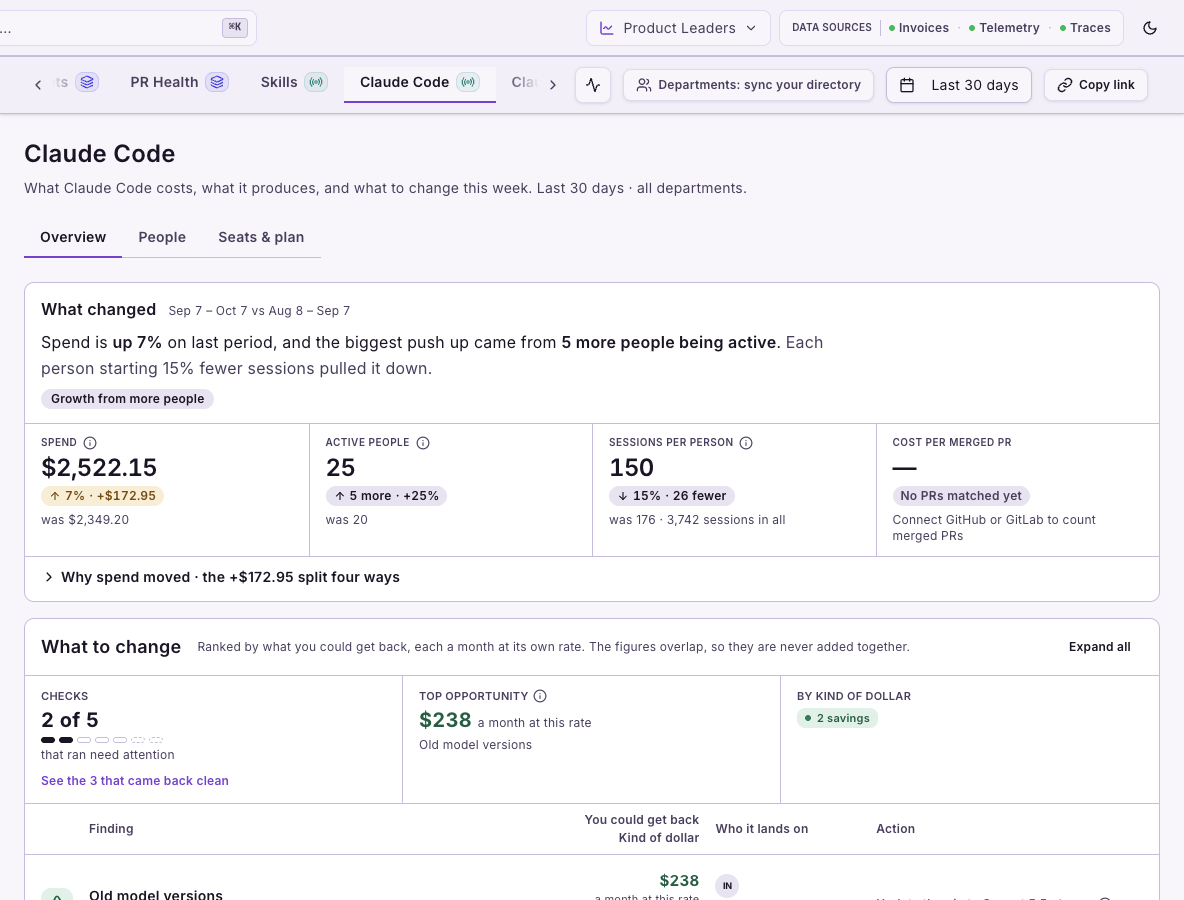
The Claude Code dashboard shows what your teams spend on Claude Code, who is spending it, whether your seats are used, and what to change. Setup steps are shown on screen; this page covers what the dashboard needs, how it works, and how to read it.
## What it needs
* **Claude Code telemetry**, set up as described in [Set up Claude Code](/track-and-control-costs/analyze-ai-tooling-spend/setup-claude-code.md). For an organization rollout, push managed Claude Code settings with telemetry on to every engineer. Engineers restart Claude Code after the settings arrive.
* **A seat plan**, optional, to compare seats with use on **Seats & plan**.
* **Departments**, optional, to read findings by department. See [Attribute Spend to Departments](/track-and-control-costs/attribute-spend-to-departments.md).
With no usage in the selected range, **Overview** and **People** show an empty state; a saved seat plan still appears on **Seats & plan**.
## Reading the numbers
### Overview: what changed, and what should we change?
**Overview** opens with **What changed**: **Spend**, **Active people**, **Sessions per person** and **Cost per merged PR**, each against the previous period of the same length. With a [code host connected](/track-and-control-costs/analyze-ai-tooling-spend/github-integration.md), you can see whether a merged pull request cost more or less than last period. Then comes **What to change**: findings, each with its evidence and a suggested action. Below them are spend and output over time; with a code host connected, output can include merged pull requests. **Where the money goes** shows **Spend by person**, the top spenders with everyone else grouped in one row, and **Spend by model**. With departments set up, the **Departments** and **People** chips switch the first card between **Spend by department** and **Spend by person**, and **See all … departments** opens a searchable list of every department with spend in the period.
### What to change: what kinds of finding are there?
Each finding is a check on your telemetry. The checks fall into these families, and each finding states its kind of dollar:
| Check family | Examples |
| ---------------- | ------------------------------------------------------------------------------------------------ |
| Context | **Context carried past 200K tokens**, **Cache rebuilt after a break** |
| Model choice | **Flagship model by default**, **Old model versions**, a newer version reported cheaper per task |
| Reasoning effort | **Effort above the model default**, **Spend at the top effort level** |
| Pull requests | **Heavy spend with no code host login** |
| Kind of dollar | Meaning |
| --------------------------- | ----------------------------------------------------------------------------- |
| **saving on the seat bill** | Seat cost you would stop paying each month, measured on your seat bill |
| **saving, measured** | The gap between this spend and your team's own rate, measured from your usage |
| **saving, estimated** | An estimate of what could be saved, from your team's usage |
| **saving if upgraded** | What moving to the current model version would save, priced at API rates |
| **needs inspection** | Spend worth looking at; no saving is claimed |
If your team has a seat plan, findings price usage at [API rates](/track-and-control-costs/analyze-ai-tooling-spend/configure-coding-assistant-billing-models.md), not at your seat bill, and the findings list says so. Read those dollars as the value of the usage, not as money that leaves your account. Seat savings appear separately, as **saving on the seat bill**.
Two of the findings above point at working habits rather than at a model choice:
* **Cache rebuilt after a break** finds sessions that someone came back to after a long pause, where Claude Code wrote the whole conversation into the cache again. It shows what those re-uploads cost under **Spent re-uploading**, how many rebuilds there were, and who had them. The suggested action: run `/compact` or `/clear` before stepping away, and start a new session after a long break instead of resuming a large one.
* **Effort above the model default** finds requests that ran at a higher reasoning effort than their model's default. It shows the spend and the share of requests above the default, and names the people who most often run above the default. The suggested action: lower the default effort level in your managed settings, and talk with those people. The amount is the full cost of those requests, so it is marked **needs inspection** rather than claimed as a saving.
**Heavy spend with no code host login** names people among your team's heaviest Claude Code spenders who have no GitHub or GitLab login mapped to their email address. Revenium cannot count any of their pull requests anywhere on the dashboard. The figure is what those people spent in this period, not a saving. The suggested action is **Map their logins in Integrations**: map each person's login under [GitHub user mappings](/track-and-control-costs/analyze-ai-tooling-spend/github-integration.md#managing-user-mappings) or on the [GitLab integration](/track-and-control-costs/analyze-ai-tooling-spend/gitlab-integration.md). The check runs only when a GitHub or GitLab account is connected.
Checks that came back clean are listed under **Looking good**. Each check's explainer, threshold and how it is computed are shown on screen under its information icon.
### Findings by department or person: where is the issue concentrated?
In **What to change**, switch between **Departments** and **People** when departments are synced. A department view divides a finding's figure among departments, shows any amount with no department, and lets you open the people behind a department's share. Some checks report only by person or for the whole team. **People** names those well above the team or department median who have enough measured spend for a fair comparison, and may name nobody when there is too little data. A department finding shows where an issue is concentrated, not that everyone in the department has it. Without departments, findings are shown by person only.
### People: who is driving the spend?
**People** lists usage by person, as a table by default. Search and filter the roster (**Flagship-heavy** shows only people who put most of their model spend on the most expensive models), switch it between people and departments where departments are set up, select a person to see their usage, and export the roster with **Export page CSV**.
Select a person to open their details: usage over time, their model mix, how their context compares with the team, and **Where their PRs land**, their merged pull requests by repository. That table covers GitHub only; GitLab merge requests count in the person's merged total but have no repository rows. If an admin merged several logins into one person, the details list them, and use under any of them counts as that person.
In the departments view, the arrow at the end of a department row drills into that department: the breadcrumb starts at **All departments**, the department's direct members are listed, and its sub-departments appear as rows you can drill into in turn. A department with too many people to show at once is marked **Too large to filter** in the department picker. Picking it shows **This department is too large** and asks you to pick a smaller department.
The **Efficiency map** plots each person, or each department, by AI cost at API rates against merged pull requests, and falls back to sessions when there are no merged pull requests to count. Bubble size is sessions. Dashed lines mark the team's top quarter of cost and its median merged pull requests. Colours mark **Higher output, lower spend**, **Higher output, higher spend**, **Lower output, higher spend** and **Lower output, lower spend**; select a colour in the legend to show only those bubbles. **Stretch to outliers** widens the view to include people far from the team; **Focus on the team** brings it back.
**Service logins, set aside** lists logins an administrator marked as bot or service accounts. A marked login holds no seat and leaves **People** and the map, but its spend stays in every team total. Nothing is marked automatically.
To mark a login, an administrator whose role can manage identities opens **Intelligence > AI Assistants > By Employee**, selects the person, and uses the bot icon in their details header (**Mark as bot or service account**; the same icon offers **Unmark as bot or service account**). The person then shows a **Bot/service account** badge.
Merged logins are different: they are one person's several addresses, counted as that person. From the same person details, **Merge identities into this person** combines addresses, and **Unmerge all** undoes it.
When your usage carries reasoning effort, the **People** view can show its spend by department or person.
### Seats & plan: are we paying for seats we do not use?
**Plan and seats** shows the **Seat bill**, **Seats**, **Active** and **Inactive** seats (with the monthly cost of inactive seats you could recover), **Usage at API rates**, and the **Ratio** of usage to the seat bill. **Seats by tier** breaks the plan down by tier. **Edit plan** opens a drawer where you add tiers with **Add tier** and set each tier's seats and price; if there is no plan yet, start with **Add a seat plan**. A team admin must save it. The plan records how many seats each tier has, not who holds them. Seat activity uses a trailing 30-day window whatever period you select, and seat totals cover the whole team even when you filter to a department. If your team pays API rates, the tab explains that billing basis instead. One plan and its seats cover Claude Code and [Claude Cowork](/track-and-control-costs/analyze-ai-tooling-spend/setup-claude-cowork/claude-cowork.md).
### Conversation depth: are long conversations driving cost?
The **Context carried past 200K tokens** finding opens the **Conversation depth** card through **By turn, above 200K**. It groups assistant turns by how much context they carry and shows each group's share of turns and spend, then shows whose middle turn falls in each band, by person or by department, with a comparison against typical usage across customers. The card's replay-cost figure is an estimate of what context above the reference line costs after compaction, not guaranteed savings.
## Limits
* Skill cost is currently an approximation. The dashboard does not show a cost for each skill; it appears on **Intelligence > AI Assistants > Skills**. Use a skill's cost to compare skills and to see where spend concentrates, not as an exact amount.
* Conversation depth needs telemetry with session and token data; without it the card shows an empty state.
---
# Agent Instructions
This documentation is published with GitBook. GitBook is the documentation platform designed so that both humans and AI agents can read, navigate, and reason over technical content effectively. Learn more at gitbook.com.
## Querying This Documentation
If you need additional information that is not directly available in this page, you can query the documentation by asking a question.
Perform an HTTP GET request on the following URL with the `ask` and `goal` query parameters:
```
GET https://docs.revenium.io/track-and-control-costs/analyze-ai-tooling-spend/setup-claude-code/claude-code.md?ask=&goal=
```
`ask` is the immediate question: it should be specific, self-contained, and written in natural language.
`goal` is what the user is ultimately trying to achieve, the reason they need the answer. Sharing it helps GitBook give you a better, more relevant answer. A goal is most helpful when it describes the outcome the user wants rather than restating the question. For example, with `ask=how do I create an API token`, a goal like `automate deployments from our CI pipeline` lets GitBook tailor the answer to that use case.
The response will contain a direct answer to the question and relevant excerpts and sources from the documentation.
Use this mechanism when the answer is not explicitly present in the current page, you need clarification or additional context, or you want to retrieve related documentation sections.