> For the complete documentation index, see [llms.txt](https://docs.revenium.io/llms.txt). Markdown versions of documentation pages are available by appending `.md` to page URLs; this page is available as [Markdown](https://docs.revenium.io/optimize-performance/predict-and-surface-anomalies.md).
# Predict & Surface Anomalies
Most performance and cost problems don't announce themselves. They accumulate quietly in the tail of your distribution - a trace type getting gradually slower, an agent generating more transactions than it should, a cost outlier running a hundred times before anyone notices. By the time the problem is obvious, it's already expensive.
Revenium's anomaly detection runs continuously across your instrumented workflows, automatically classifying outliers by severity so you can find and fix the ones that matter before they compound. The goal isn't to alert you to every deviation - it's to surface the ones that are statistically significant, ranked by how urgently they need attention.
***
For prioritized recommendations across cost, reliability, efficiency, and recoverable spend, see [AI Insights](/optimize-performance/ai-insights.md). AI Insights runs a broader recommendation analysis and links findings back to the transactions and traces that triggered them.
***
### :chart-line-up: Two Types of Anomaly
Anomaly detection covers two distinct dimensions of your AI's behavior, each accessible through the Traces view in their respective section.
**Cost anomalies** are in **Intelligence > Performance > Traces**. These compare the cost of individual traces against your historical baseline, flagging executions that are significantly more expensive than expected - whether that's because a model was called more times than usual, a more expensive model was used unexpectedly, or a workflow ran far longer than its typical path. A single cost anomaly can be a one-off; a pattern of them against the same trace type is almost always a prompt or architecture issue worth fixing.
**Performance anomalies** are in **Intelligence > Performance > Traces**. Under the Performance sub-view, anomalies are flagged against trace duration - catching the executions that are taking significantly longer than your historical baseline, even when the completion rate looks healthy. Under the Efficiency sub-view, they're flagged against transaction count per trace, catching workflows that are generating far more calls than expected. This is often the earliest signal of a looping agent - visible here as an efficiency anomaly before the cost impact becomes significant enough to show up elsewhere.
Both surfaces use the same severity classification and the same investigation path, so however you arrive at an anomaly, the process from there is identical.
***
### :cabinet-filing: How Anomalies Are Classified
Every anomaly is automatically assigned a severity based on where it sits in the statistical distribution of your traces:
* **Critical (P99)** - the top 1% of outliers, exceeding the 99th percentile threshold. These require immediate attention and are the first place to look when something has changed in your system.
* **High (P95)** - the top 5%, exceeding the 95th percentile. These should be reviewed and optimized - often they represent the same underlying issue as Critical anomalies, just less extreme instances of it.
* **Moderate (P75)** - the top 25%, exceeding the 75th percentile. These are worth monitoring closely. A Moderate anomaly today that keeps recurring is a High anomaly waiting to happen.
The threshold isn't a fixed number you configure - it's derived from the actual distribution of your traces. A Critical anomaly means something genuinely abnormal for your specific workload, not just a value that crossed an arbitrary limit someone set months ago. As your system changes, the thresholds adapt with it.
When anomalies are present, an inline indicator on the main metric card shows the total count and flags any Critical anomalies specifically, so the most urgent signal is always visible without having to scroll to the anomaly section.
***
### :searchengin: Finding and Filtering Anomalies
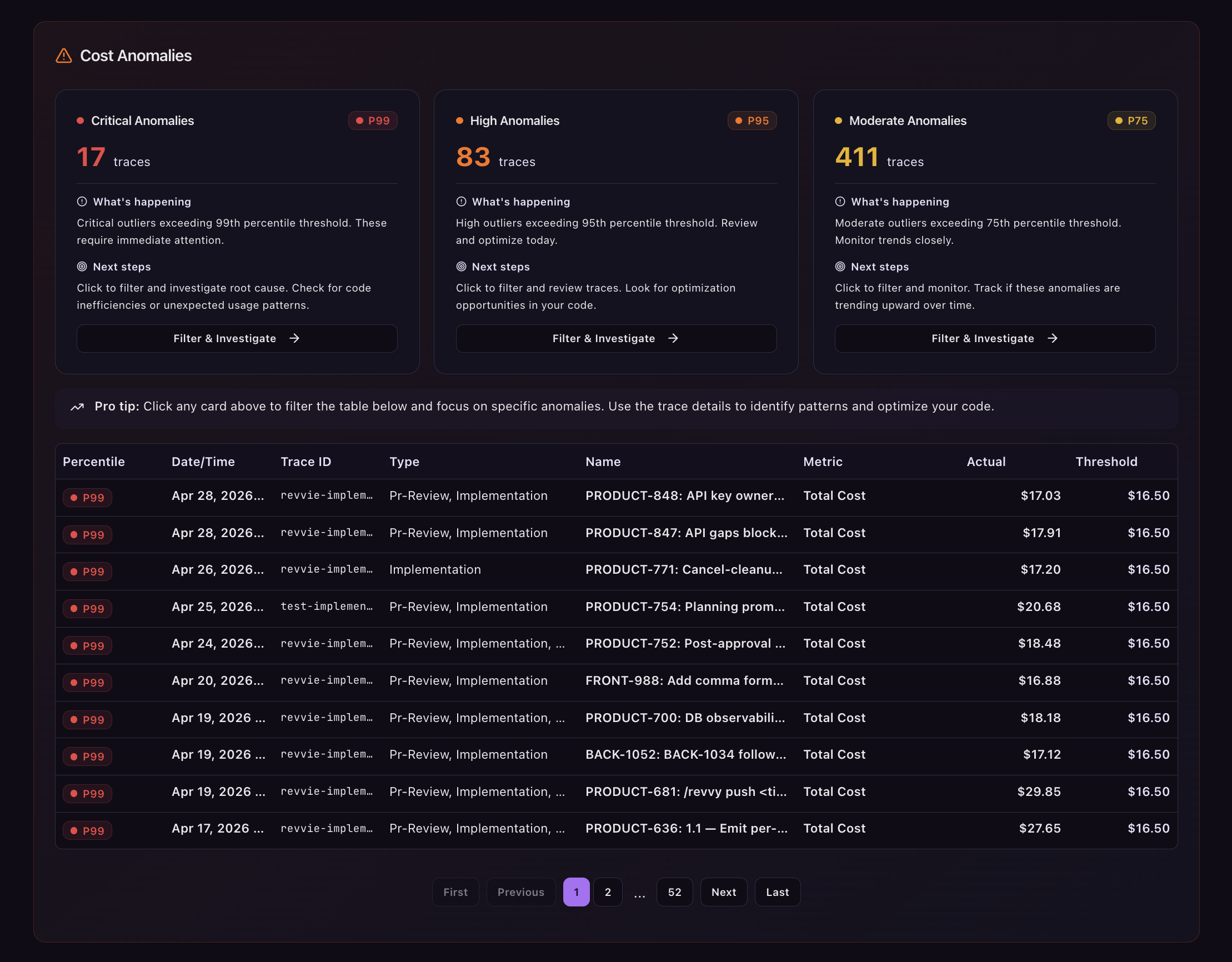
Each anomaly section shows three clickable cards - one per severity tier - displaying the count of anomalous traces, an explanation of what's happening at that level, and suggested next steps. The cards aren't just a summary: clicking one filters the anomaly table directly to that severity, so you can focus on Critical traces first without the Moderate ones creating noise. Click again to return to the full view.
The anomaly table gives you everything you need to decide where to look first - when the trace occurred, its Trace ID, type and name, which metric triggered the anomaly, the actual measured value, and the threshold it exceeded:
| Column | Description |
| ---------- | --------------------------------------------------------- |
| Date/Time | When the anomalous trace occurred |
| Trace ID | Unique identifier (clickable to view trace details) |
| Type | Trace type category |
| Name | Trace name |
| Metric | Which metric triggered the anomaly |
| Actual | The measured value that exceeded the threshold |
| Threshold | The percentile threshold value that was exceeded |
| Percentile | Badge showing which percentile was exceeded (P75/P95/P99) |
Traces flagged at multiple severity levels - appearing as both P99 and P95 rows - are the ones most likely to represent a genuine underlying problem rather than a one-off outlier. Clicking any row opens the full Trace Detail View, where you can see exactly what happened inside that execution and why it deviated from the norm.
***
### :question: What to Act On First
Not every anomaly demands the same response. A useful starting point is to look at Critical anomalies first and ask whether the same Trace ID or trace type appears across multiple severity rows - if it does, that's a consistent problem, not a fluke. From there, check whether the anomaly is isolated to a single date or recurring across a period: a one-time spike often has an external explanation, while a recurring pattern usually points to something structural in the workflow or prompt.
Moderate anomalies are worth reviewing periodically rather than immediately - but if the count in that tier is growing week over week, that's the signal to move them up your priority list before they become Critical.
***
### :coins: Cost Anomalies in Depth
The Cost tab pairs anomaly detection with a full breakdown of where spend is going. At the top, four metric cards summarize **Total Cost**, **Average Cost**, **P95 Cost**, and **Trend** (percentage change vs previous period, with absolute delta). Four insight cards then call out the most expensive trace type, the one with the biggest cost increase, the one with the most P95+ outliers, and the most cost-efficient trace type - so the prioritisation work is done for you.
The **Cost Trends** chart plots cost over time with one line per trace type — clicking a legend entry filters the table below. The **Cost by Operation Type** card breaks total spend across AI operation types (Chat, Embed, Image, Audio) with a sorted, color-coded bar — useful for spotting that "we're spending most on chat completions, but image generation is rising fastest." The dropdown only shows operation types with data in the selected window, so empty categories don't clutter the view.
Setting the grouping control to **Trace type** groups the cost table by trace type with Total Cost, Average Cost, P95 Cost, P99 Cost, and Trend. Rows expand to show the individual traces inside each type — and from there, clicking a single trace opens the Trace Detail View. The Cost Anomalies section underneath the trends chart filters anomalies specifically on `TOTAL_COST`, so you only see cost-related outliers; the inline indicator on the Total Cost metric card scrolls you straight there.
***
## Explain a spend spike by day
Spend charts in **Top Movers** and **AI by Employee** mark days that require investigation. Hover a marker for context, or select the day to open its Day Explainer. The selected day is kept in the URL so the same investigation can be reopened or shared.
### Read the baseline
The Day Explainer compares spend and token usage on the selected day with the rest of the selected period. Use that comparison to understand whether the change came from more usage, a change in effective rate, or both.
### Identify the leading contributors
The explainer identifies the leading employee or model contributors where that data is available. It also shows changes in model mix and rate so you can distinguish a usage increase from a more expensive usage pattern.
### Open transactions or share the day
From the drawer, open the selected day's transactions to inspect the underlying activity. Use the copy-link action to share the same day and context with a teammate.
### Take action for an employee contributor
A budget action appears only when a contributor is recognized as an employee. It is not shown for every spike or every contributor. The action is available only when Guardrails is enabled for the tenant.
For the surrounding cost workflow, see the **Costs & Revenue** section. For employee analysis and Guardrail hand-off, see [AI Assistants](/track-and-control-costs/analyze-ai-tooling-spend.md#ai-by-employee).
***
### :stopwatch: Performance Anomalies in Depth
The Performance tab tracks execution time across your traces. The four metric cards at the top - **Average Duration**, **P95 Duration**, **P99 Duration**, **Trend** - tell you immediately whether performance is drifting and how much variance is hiding in the tail. The four insight cards highlight the slowest trace type by P95, the most transaction-heavy trace type, the most inefficient (highest P99/P50 ratio), and the trace type with the biggest negative performance trend vs the previous period.
The **Performance Trends** chart breaks duration over time per trace type. Performance Anomalies underneath filter on `TRACE_DURATION` so only duration outliers appear. The Performance by Trace Type table is expandable: each row drills down into individual traces, each clickable through to the Trace Detail View.
The combination of these surfaces is what makes "slow agents getting slower" visible — a single P99 spike is one investigation; the same trace type appearing in P99 and P95 rows over a recurring period is a workflow that needs structural attention.
***
### :rotate: Efficiency Anomalies & Circular Patterns
The Efficiency tab tracks transaction count per trace - how many calls each execution generates. **Average Transactions**, **P95 Transactions**, and **P99 Transactions** sit at the top alongside a Trend metric. Insight cards surface the most efficient trace type, the least efficient, the one with the highest variability, and the one with the most outliers.
The **Efficiency Trends** chart plots transaction counts over time, with optional P95/P99 percentile overlays and a switch between line and scatter views.
The most valuable section sits underneath: **Circular Pattern Analysis**, a dedicated panel that detects loops in your traces — agents calling each other in repetitive sequences that often indicate broken exit conditions, missing caching, or a planner that can't decide. Each detected pattern shows:
* The call sequence (e.g. `Agent A → Agent B → Agent A`).
* Occurrence count.
* Total wasted duration and cost.
* Severity badge (Critical, Major, Minor) — filterable inline.
* Hop count (how many calls form the loop).
Patterns are ranked by impact, with summary metrics for **Patterns Detected** and **Total Waste** at the top. Use this as the primary signal for "should this workflow be restructured?" - circular patterns are the failure mode that turns a $2 workflow into a $200 one before anyone notices.
The Efficiency Anomalies section below the pattern panel filters anomalies on `TRANSACTION_COUNT`, surfacing traces with unusually high call counts that may not yet have triggered a circular pattern but are headed that way.
***
### :people-arrows: Agent Interaction Patterns
For multi-agent architectures, the Agent Interaction view tracks agent-to-agent calls within a trace. Four metric cards summarize **Agents** (unique active agents), **Interactions** (total agent-to-agent calls), **Total Cost** (cumulative cost of all agent interactions), and **Avg Interactions/Agent**.
The centrepiece is the **Agent Activity Matrix** — an interactive grid where rows are "from" agents and columns are "to" agents, with cells showing the chosen metric (Call Count, Total Cost, or Avg Duration). Color intensity scales with magnitude, the rightmost Total column shows each agent's total activity, and self-interaction cells (the diagonal) are dimmed and disabled. Switch between Absolute mode (colours from raw values) and Relative mode (colours from each agent's proportion of total activity) to spot different patterns: Absolute shows which agents are most active in your system; Relative shows which agent pairs dominate each agent's outbound traffic.
Hover any cell for raw value, activity classification (Low → Extreme), comparison vs median, percentage of agent's total activity, and typical-range context. Sort agents alphabetically or by Total Activity, and filter to a specific subset for focused investigation.
The **Agent Interactions** table below the matrix lists every from-agent → to-agent pair with Call Count, Total Cost, and Avg Duration columns. This is the surface for cost-attribution conversations: which agent pairs are driving spend, and is the orchestration overhead justified by the outcomes it produces?
***
### :diagram-project: Trace Detail View
When you click a trace from any tab, the Trace Detail View opens a complete picture of that one execution.
The header shows the **Trace Type** badge, **Trace ID** (the same `traceId` you pass in your API calls), **Task Type**, and **Agent**. Metric badges underneath display Total Cost, Duration, Time to First Token, Total Tokens, Transaction Count, and Success/Error counts. Context badges complete the picture: Subscriber, Organization, Product, Environment, Provider(s), Model(s).
A **Transaction Timeline** waterfall renders every transaction as a horizontal bar — bar length scales with duration, colours indicate model/provider, and tooltips show full transaction metadata on hover. Bottlenecks reveal themselves visually: a single bar consuming most of the timeline is the call that's setting the trace's wall-clock duration.
The **Dependency Tree** is the more powerful surface. It renders the parent-child relationships between transactions (set via `parentTransactionId`), showing how a trace actually executed:
* **Nodes** show agent name, task type, model, individual duration and cost, and the cumulative path duration and cost from the root.
* **Edges** show parent → child flow.
* **Critical Path** highlights the longest execution path — the chain of calls that determined the trace's overall duration.
* **Bottleneck Indicators** mark transactions that ran significantly longer than the trace's average (the threshold is roughly 2.5× average duration).
* **Lane Summaries** at the bottom of the tree aggregate metrics for each path: total duration, total cost, node count, and whether the path is on the critical path.
The tree also classifies the workflow into a pattern type:
* **Linear** - sequential execution, no branching.
* **Converging Paths** - parallel branches that share a common parent.
* **Multi-Root** - multiple independent execution trees in a single trace (often a sign of unrelated work being mis-correlated under one Trace ID).
Click any node to open a **Transaction Details Drawer** with the full call payload. **Optimization Potential** surfaces explicitly when a non-critical path is significantly faster — telling you how much time you could save by speeding up the critical path.
Underneath the tree, four breakdown cards give you the aggregate views: **Cost by Model**, **Cost by Provider**, **Token Breakdown** (input vs output), and **Duration by Task Type**. A complete **Transaction Details Table** lists every transaction with full metadata, exportable to CSV.
***
### :gear-code: Setting Up Traces
Anomaly detection and the Trace Detail View only work as well as the metadata you pass when sending AI transactions. To get the most value:
* **Trace ID** — use consistent trace IDs to group related transactions into a workflow. Don't reuse a Trace ID across unrelated executions; do reuse it across the spans of one execution.
* **Trace Type** — categorize workflows (e.g. `chat-completion`, `document-analysis`) so aggregations are meaningful at the trace-type level.
* **Task Type** — label the operation each transaction performs.
* **Agent** — identify which agent or service produced the transaction so the Agent Interaction matrix has signal.
* **Parent Transaction ID** — set parent-child relationships to enable the Dependency Tree. Without this, you'll still get cost and duration metrics, but the tree collapses into a flat list and Critical Path detection isn't available.
For the full instrumentation pattern see [Instrument Your Code](/track-and-control-costs/instrument-your-code.md).
***
> **Through MCP, conversationally.** Anomaly review is recurring work. Check whether anything new has surfaced, look for patterns that keep coming back, decide what's worth acting on this week. An AI assistant connected to Revenium via the MCP Server can run that review on demand or on a schedule. Ask "any new anomalies since Monday and which customers do they affect?", "have we had recurring spend anomalies on any specific model this month?", or "set an alert if any customer's spend rises more than 20% week over week." The agent runs the queries, surfaces the patterns, and tells you what changed. Useful for keeping the review going when nobody has time to log into the dashboard.
---
# Agent Instructions
This documentation is published with GitBook. GitBook is the documentation platform designed so that both humans and AI agents can read, navigate, and reason over technical content effectively. Learn more at gitbook.com.
## Querying This Documentation
If you need additional information that is not directly available in this page, you can query the documentation by asking a question.
Perform an HTTP GET request on the following URL with the `ask` and `goal` query parameters:
```
GET https://docs.revenium.io/optimize-performance/predict-and-surface-anomalies.md?ask=&goal=
```
`ask` is the immediate question: it should be specific, self-contained, and written in natural language.
`goal` is what the user is ultimately trying to achieve, the reason they need the answer. Sharing it helps GitBook give you a better, more relevant answer. A goal is most helpful when it describes the outcome the user wants rather than restating the question. For example, with `ask=how do I create an API token`, a goal like `automate deployments from our CI pipeline` lets GitBook tailor the answer to that use case.
The response will contain a direct answer to the question and relevant excerpts and sources from the documentation.
Use this mechanism when the answer is not explicitly present in the current page, you need clarification or additional context, or you want to retrieve related documentation sections.