> For the complete documentation index, see [llms.txt](https://docs.revenium.io/llms.txt). Markdown versions of documentation pages are available by appending `.md` to page URLs; this page is available as [Markdown](https://docs.revenium.io/optimize-performance/monitor-latency-and-performance.md).
# Monitor Latency & Performance
Knowing your AI executed successfully is a low bar. What matters is whether it executed well - and whether the performance you're seeing today is better or worse than it was last week. Revenium's Performance section is where slow agents get caught, degrading models get identified, and inefficient workflows get fixed before they become expensive habits.
Use **Intelligence > Performance** for execution metrics. For cost-first task analysis, open **Costs & Revenue > Tasks**.
***
## Review task spend in Costs & Revenue
Open **Costs & Revenue > Tasks** when the investigation starts with spend rather than execution performance. The redesigned Tasks view keeps four task-cost surfaces together.
### Spend summary
The summary at the top shows total task spend for the selected period and how it changed versus the previous one.
### Cost trend
The cost trend defaults to cost per run, with a **Cost-per-run / Total-cost** toggle so you can switch between per-run efficiency and total task spend across the selected period.
### Spend concentration
A breakdown chart shows how task spend is concentrated — whether a few tasks dominate or it's spread evenly.
### Task breakdown
A table beneath the charts lists each task with its individual spend.
Use the spend view to identify the task that needs attention, then use the Performance task guidance below when the investigation shifts to throughput, completion, duration, or failed runs.
See the **Costs & Revenue** section for the shared cost-analysis workspace and date-range context.
***
### :stopwatch: Catch Reliability Problems Before Your Users Do
The Tasks view gives you the first signal that something is wrong: completion rate, broken down into successful, timed out, and failed - over time, not just as a snapshot. A completion rate that looks fine today can be masking a window of degradation that happened last Tuesday. The over-time view is what catches that.
When tasks do fail, the **Failed Tasks** table tells you immediately what failed, on which agent, using which model and provider, why it stopped, and how long it ran before it did. You're not hunting through logs - everything you need to start an investigation is in one place.
***
### :traffic-light-slow: Find Out Which Tasks Are Actually Slow
Not all slowness is equal. **Duration by Task Type** surfaces which operations are taking significantly longer than others. If code analysis is running at ten times the duration of a chat response, that's either a prompt length issue, a model selection problem, or a workflow that needs restructuring - and you won't know which until you can see the comparison clearly.
**Time to First Token** adds the dimension that raw duration misses: the latency your users actually experience. A model that's fast to complete but slow to start feels broken, even if the total response time is acceptable. Tracking TTFT by model over time means you'll spot a provider degradation or model regression as it's happening, not after users have noticed.
***
### :robot: Hold Individual Agents Accountable
Aggregate metrics hide individual misbehaviour. The Agents view breaks throughput, completion rate, and execution duration down per agent, so an agent that's consistently slower or less reliable than its peers is immediately visible rather than averaged away.
The **Agent Model Comparison** table is where model choice decisions get validated. If you've switched an agent from one model to another, this table shows you the before and after - requests, average duration, TTFT, failure rate, and quality score - side by side. It's the difference between assuming a model change improved things and knowing it did.
**Reliability by Agent** ranks failure rate per agent from highest to lowest. One agent with a disproportionate failure rate is the kind of signal that gets missed in aggregate reporting and found here.
***
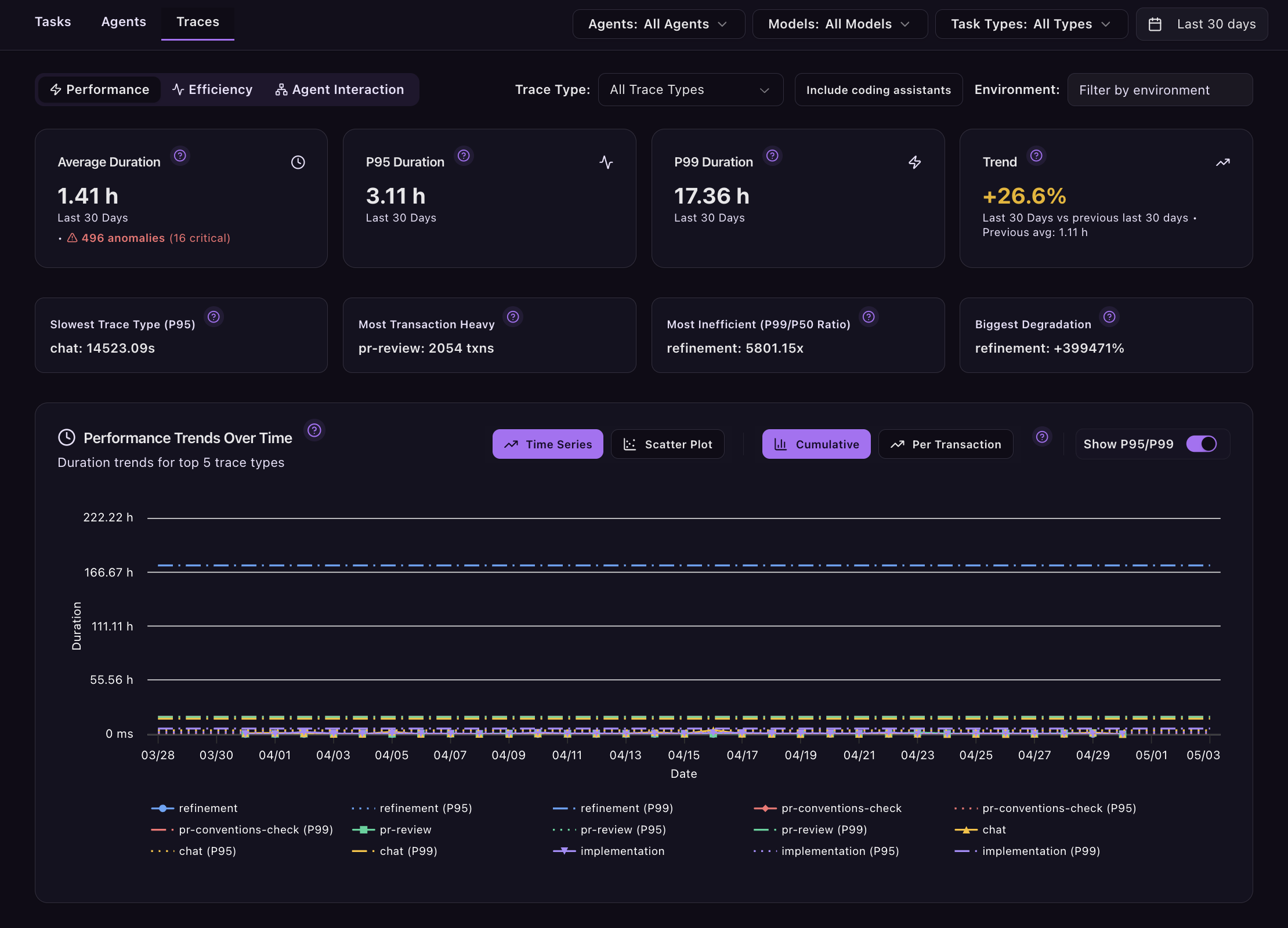
### :bone-break: Find the Runs That Are Breaking Your P99
Most traces are fine. The expensive ones - the outliers that are distorting your average and quietly degrading your user experience - live in the tail. The Traces view surfaces them.
The gap between your average duration and your P99 duration tells you how much variance exists in your system. A P99 that's ten times your average means a real proportion of your users are having a dramatically worse experience than your headline metrics suggest. **Performance Anomalies** classify those outliers automatically into Critical (P99), High (P95), and Moderate (P75) tiers, each with an explanation of what's happening and a direct link to filter and investigate the specific traces responsible.
**Four callouts cut straight to the most important signals:** your **slowest trace type** by P95 duration, your **most transaction-heavy trace type**, the trace type with the worst P99/P50 ratio (**the most unpredictable**), and the **trace type that has degraded most** since the previous period. If something has changed in your system, one of those four numbers will tell you.
***
### :eyes: Spot Agents That Are Looping
Slowness isn't the only way a workflow can become expensive. The Efficiency view tracks transaction count per trace - how many calls each execution is generating. An agent that's suddenly producing five times its usual transaction count isn't slower in wall-clock time, but it's likely stuck in a loop, making redundant tool calls, or failing to reach a clean exit condition.
**Circular Pattern Analysis** takes this further, automatically detecting whether any workflows have developed circular dependencies - agents or tools calling each other in a loop. This is the failure mode that can turn a $2 workflow into a $200 one before anyone notices. No circular patterns detected is the result you want; when they do appear, this is where you'll find them.
***
### :people-arrows: Understand How Your Agents Talk to Each Other
For multi-agent architectures, performance isn't just about individual agents - it's about how they interact. The Agent Interaction view tracks patterns, costs, and performance metrics for agent-to-agent calls within a trace, making it possible to see whether the overhead of agent coordination is justified by the outcomes it produces.
This requires your instrumentation to pass `agent`, a shared `traceId` across all transactions in a workflow, and `parentTransactionId` to link agent calls together. See [Instrument Your Code](/track-and-control-costs/instrument-your-code.md) for setup details.
---
# Agent Instructions
This documentation is published with GitBook. GitBook is the documentation platform designed so that both humans and AI agents can read, navigate, and reason over technical content effectively. Learn more at gitbook.com.
## Querying This Documentation
If you need additional information that is not directly available in this page, you can query the documentation by asking a question.
Perform an HTTP GET request on the following URL with the `ask` and `goal` query parameters:
```
GET https://docs.revenium.io/optimize-performance/monitor-latency-and-performance.md?ask=&goal=
```
`ask` is the immediate question: it should be specific, self-contained, and written in natural language.
`goal` is what the user is ultimately trying to achieve, the reason they need the answer. Sharing it helps GitBook give you a better, more relevant answer. A goal is most helpful when it describes the outcome the user wants rather than restating the question. For example, with `ask=how do I create an API token`, a goal like `automate deployments from our CI pipeline` lets GitBook tailor the answer to that use case.
The response will contain a direct answer to the question and relevant excerpts and sources from the documentation.
Use this mechanism when the answer is not explicitly present in the current page, you need clarification or additional context, or you want to retrieve related documentation sections.