> For the complete documentation index, see [llms.txt](https://docs.revenium.io/llms.txt). Markdown versions of documentation pages are available by appending `.md` to page URLs; this page is available as [Markdown](https://docs.revenium.io/monetize-your-ai/tutorial-build-usage-based-billing.md).
# Tutorial: Build Usage-Based Billing
Turning AI usage into revenue is one of the hardest problems in monetising an AI product. You have variable per-request costs from your providers, a subscription plan you want customers to pay for, and an overage model for when they go beyond what's included - and all three need to reconcile, invoice correctly, and support dozens of customers on different plans at the same time. Building that from scratch takes months. Revenium gives you the full billing engine, the metering pipeline, and the subscription logic out of the box, so the question stops being "how do we build this?" and becomes "how do we want to price it?"
This tutorial walks through a working usage-based billing configuration end to end. Every step can be done in the UI or automated via the API - the UI is faster for initial setup and day-to-day operations, the API is what you'll reach for once customer signups, plan changes, and billing operations need to happen automatically as part of your product. Each step calls out what's available programmatically and links to the relevant section of the [API reference](https://revenium.readme.io) so you know where to look.
An account administrator opens **Settings > Usage-Based Billing** and uses **Enable usage-based billing**; other members of the account do not see this setting. The setting turns on invoicing, subscriptions, products and usage meters for the account. When it is off, the Revenue Sources and Billing sidebar items (invoicing, subscriptions, products and usage meters) are hidden for everyone in the account and the account's usage is not billed: usage from a period when the setting was off is never billed later, even after it is turned back on. AI usage and cost analytics keep recording either way.
### :brain-circuit: The Example We'll Use
We'll work through a realistic scenario: a software company selling AI-powered document summarisation. Their product offers two services - a lightweight summary using a cheap model, and a deeper research service using an expensive reasoning model. They want to sell this as a subscription with a fixed monthly fee that includes a set amount of usage, then charge per-use overages once that's exhausted.
This shape - fixed fee plus metered overages - covers the vast majority of usage-based AI pricing models, so what you build here applies directly to most real products.
### :object-ungroup: The Objects That Make Billing Work
Four objects do the work in Revenium's billing system, and every configuration step maps to one of them:
* **Sources** are the systems sending usage data. For an AI product this is the SDK or metering API calls from your application.
* **Products** are what you sell. A product combines one or more sources with pricing, invoicing periods, and billing rules.
* **Subscriptions** are issued when a customer buys a product - they link a specific customer to a specific plan.
* **Subscribers** are the customers themselves.
The chain runs in one direction: a subscriber owns a subscription, which grants access to a product, which meters usage from one or more sources. When a metering event arrives, Revenium follows that chain to determine who to bill and how much. Every object in this chain has full API coverage, so the whole setup can be automated when you're ready.
### :play: Step 1: Confirm Your Usage Data Is Flowing
Nothing else in the billing stack works without clean metering data, so this is the first thing to check. If you've completed [Instrument Your Code](/track-and-control-costs/instrument-your-code.md) you're most of the way there, but for billing specifically every call must carry:
* `subscriber.id` (nested under the `subscriber` object) - the end customer
* `productName` - the commercial tier they're on
* `organizationName` - the top-level account, when customers belong to companies with multiple users
Without these, Revenium still captures cost and token data, but it can't map usage to a subscription — which means it can't bill for it. Head to **Data > Logs** and check that recent transactions show the Organization and Subscriber columns populated. For the full field list and SDK syntax, see [SDK Setup → Usage Metadata](/integrations/sdk-setup.md#usage-metadata).
**Via API:** the metering API is the direct ingestion route if you're not using an SDK. There are dedicated endpoints for [AI completions](https://revenium.readme.io/reference/meter_ai_completion), [images](https://revenium.readme.io/reference/meter_ai_images), [video](https://revenium.readme.io/reference/meter_ai_video), [audio](https://revenium.readme.io/reference/meter_ai_audio), [tool calls](https://revenium.readme.io/reference/meter_tool_event), and [generic custom events](https://revenium.readme.io/reference/meter_event) - plus full [OpenTelemetry (OTLP) support](/integrations/otlp-integration.md) for teams that already emit telemetry through existing observability stacks. All of them accept the three identifier fields above.
### :tags: Step 2: Create Your Product
Head to **Configuration > Revenue Sources** and open the **Products** tab. Revenium will have auto-created a default product for any metering calls it's already seen - you can either edit one of those or click the **+** button to create a new one.
#### The Core Fields
Every product has the same required fields at the top:
* **Product Name** - what customers see on invoices and what your team sees in dashboards.
* **Sources** - the data sources that feed usage into this product. Select AI for AI metering data, or any other source type you have connected.
* **Currency** - the currency all charges on this product will be invoiced in.
* **Recurring Charge** - the fixed fee per invoicing period. For the summarisation example, this is the $199/month subscription price.
Above the pricing section, four optional modules can be toggled on: **Provider Notifications** (cc internal addresses on all customer emails), **One Time / Setup Fee**, **Free Trial**, and **Custom Metadata**. Turn these on only when you need them.
#### Configuring Usage-Based Pricing
Under **Configure Usage-Based Pricing** you set two top-level choices:
* **Metered Element** - what you're charging on. "Total Cost" charges based on the AI cost Revenium has calculated - pass-through with or without a markup. Alternatively you can charge on any metering element defined in the Usage Meters tab under Revenue Sources: tokens, pages, characters, credits consumed, or any custom unit.
* **Aggregation Method** - how values are combined within an invoicing period. "Sum Element Values Received" is the default. Other options (average, maximum, count of occurrences, count of unique values, match-specific-value) each fit different pricing shapes.
Then you define **Pricing Tiers**. Each tier has:
* **Tier Name** - your internal label (e.g. "First 1,000", "1,000+").
* **Tier Max Value** - the upper bound. The final tier is always Unlimited.
* **Unit Rate** - price per unit within this tier.
* **Fixed Cost / Tier** - optional flat charge that applies when a customer enters this tier, on top of unit rates.
A tier structure for the summarisation example:
* **Tier 1**: First 1,000 units at $1.50 per unit
* **Tier 2**: 1,001+ (Unlimited) at $1.35 per unit
Add more tiers with **Add Pricing Tier**, or add entirely separate pricing metrics - charging on tokens *and* transactions, for example - with **Add Pricing Metric**. Enabling **Notify at tier threshold** sends automated emails when a percentage of each tier is consumed.
#### Invoicing, Schedule, and Payment Options
* **Invoicing Period** - monthly, annual, custom intervals, or the short 5-minute testing periods that let you validate a full billing cycle in an hour.
* **Invoice Schedule** - In Advance (recurring fees at period start) or In Arrears (everything at period end). Usage fees are always in arrears.
* **Payment Options** - Invoice Only, Invoices with External Payment Updates, or Stripe-Enabled Payments.
**Via API:** [products](https://revenium.readme.io/reference/get_product) can be created, updated, and managed programmatically, including pricing tiers and all invoicing rules. [Metering elements](https://revenium.readme.io/reference/get_metering_element_definition) have their own endpoints, so custom pricing units can be provisioned alongside the products that use them. For teams running custom or fine-tuned AI models with non-standard pricing, tenant-specific [AI model pricing overrides](https://revenium.readme.io/reference/batch_save_pricing_dimensions) are also available.
### :users: Step 3: Create the Subscriber and Subscription
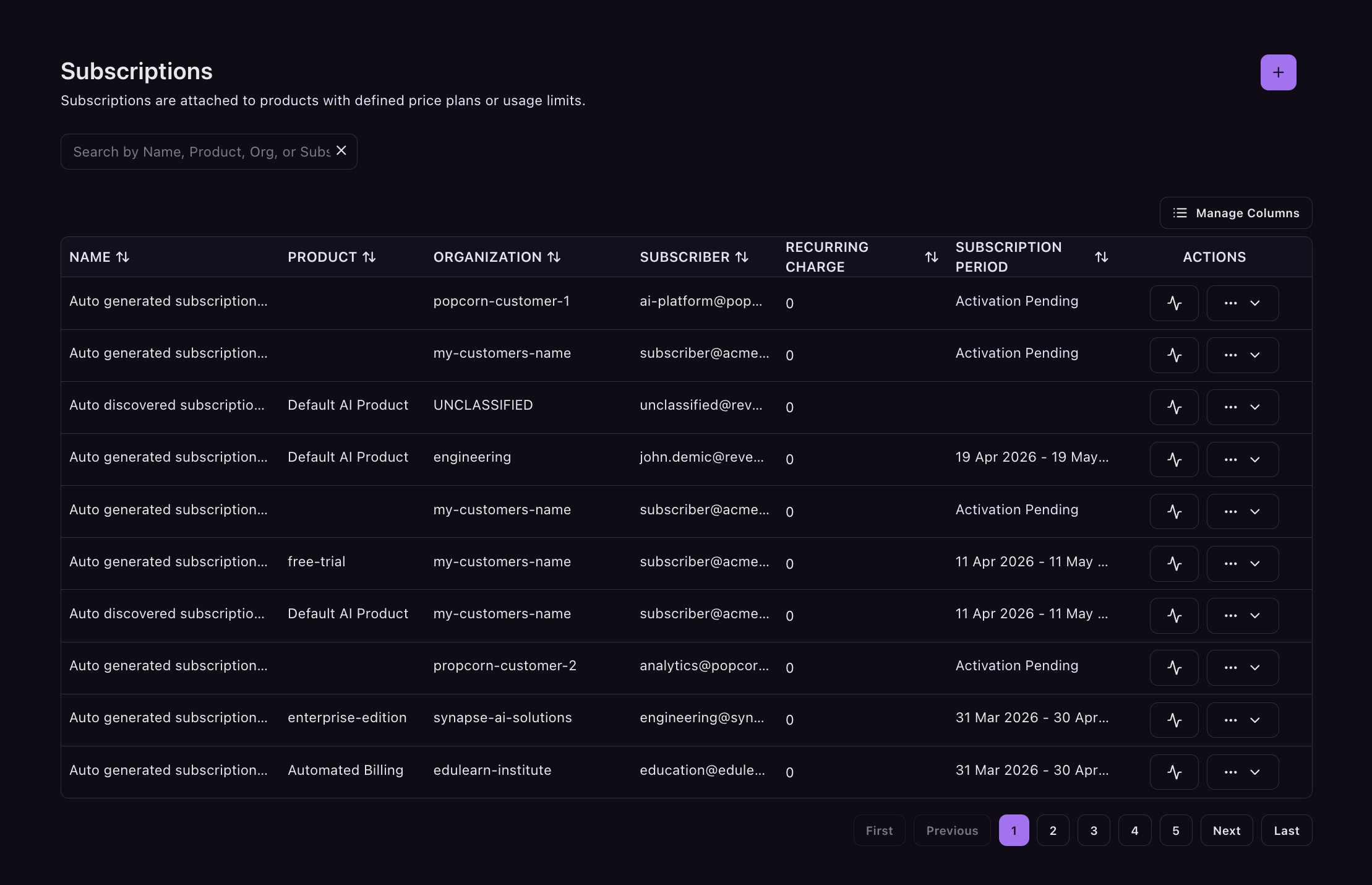
Subscriptions live under **Configuration > Billing**, then the **Subscriptions** tab. This is the action that actually activates billing for a customer.
Click **+** and fill in:
* **Customer Name** - an existing organization or a new one
* **Product Selection** - the product from Step 2
* **Subscriber's Email** - the end user receiving invoices
* **Subscriber Credentials** - leave blank for auto-creation
* **Subscription Name** - a label used internally and on invoices
* **Subscription Start Date** - when billing begins
Toggle **Enable extended config** for the optional components: Expiration Date, Custom Metadata, Allow Immediate Cancellations, and Notifications / Audience Filters.
Once saved, the subscription is live. From that moment, metering events that attribute to this subscriber + product combination get rated against this plan.
#### When One Customer Has Multiple API Keys
In B2B scenarios a single customer company often needs multiple API keys - one per team or application. Revenium handles this with **Subscriber Credentials**: multiple credentials attached to the same subscription. The customer receives one consolidated invoice, but internal usage can still be broken out by key. If metering events include a subscription ID without an explicit credential, Revenium auto-creates one.
**Via API:** this is the step most teams automate first. Customer signup in your own product can trigger a chain of calls to Revenium to provision the [organization](https://revenium.readme.io/reference/get_organization) (for B2B customers), create the [subscriber](https://revenium.readme.io/reference/get_subscriber), issue the [subscription](https://revenium.readme.io/reference/get_subscription) against the right product, and optionally provision specific [credentials](https://revenium.readme.io/reference/get_credential). Plan upgrades, downgrades, and cancellations all happen through the same endpoints - and real-time quota-consumed and billed-amount lookups are available if you want to surface that data inside your own product.
### :desktop: Step 4: Test Before You Go Live
Before pointing real customers at this configuration, test it end to end. This is where the 5-minute invoicing period earns its keep.
Create a test subscription for your own account, temporarily set the product's invoicing period to **5 Minutes (randomized synthetic transactions)**, and let it run for an hour. Every five minutes Revenium will close out an invoice, reset usage counters, and generate notifications exactly as it will in production - compressed into a timeframe where you can actually watch it happen.
Check **Billing > Invoices** to watch invoices appear. Verify:
* Recurring charges appear correctly
* Usage charges accumulate against tiers
* Overage rates kick in at the right threshold
* Totals match what you expect
**Via API:** automated end-to-end billing tests can fire metering events, list the resulting [invoices](https://revenium.readme.io/reference/list_invoices), and assert on the billed amount at the subscription level. A 5-minute period plus API-driven assertions makes it practical to validate billing logic as part of CI rather than as a manual pre-launch check.
### :credit-card: Step 5: Connect Payments
For Stripe-Enabled Payments, connect Stripe under **Settings > Payment Gateways**. Click **+** and provide:
* **Name** - an internal label
* **Payment Provider** - Stripe
* **Tax Behavior** - how Stripe handles tax on invoices
* **Secret API Key** and **API Publishable Key** - from your Stripe dashboard
Once saved, the gateway becomes available as a payment option on any product. Invoices charge automatically against the card on file, with payment status tracked back into Revenium so you can see paid, pending, and failed without reconciling between two systems.
For invoice-only billing, no payment setup is needed.
### :eyes: Step 6: Customize What Customers See
Under **Settings > Notification Templates** you can customize every email Revenium sends to customers - New Invoice, Subscription Created, Subscription Canceled, Free Trial Notification, Quota Warning, Quota Tier Warning, Successful Payment, Payment Failed, Subscription Expiration. Each can be toggled on or off and edited individually.
Upload an **Email Notification Logo** so invoices and emails carry your branding rather than Revenium's. For most businesses this should be one of the first things configured, because customers see these emails long before they see any dashboard.
### :toolbox: What You've Built
With the six steps complete, you have a working usage-based billing system. Every AI call is metered, routed to the right customer's subscription, and priced against the right plan in real time. Invoices generate automatically, combining recurring fees and overages. Customers pay via whichever method you've configured, and the Costs & Revenue dashboards give full visibility into usage, revenue, and margin per customer.
This is also the foundation for everything else in the monetisation stack. Pricing rules, free trials, setup fees, volume discounts, named-customer audiences, commerce portal publishing, and product-level SLAs are all additions to the configuration you've just built - not separate systems.
Once the setup is live, the API becomes the better surface for anything you want to integrate elsewhere: pulling [billing analytics](https://revenium.readme.io/reference/list_workspace_metrics) into finance dashboards, surfacing consumption displays inside your own product, monitoring [budget pacing](https://revenium.readme.io/reference/get_budget_progress) across all customers, reporting [profit margin](https://revenium.readme.io/reference/get_profit_margin_per_customer) by customer or product, or triggering on-demand billing data refreshes.
---
# Agent Instructions
This documentation is published with GitBook. GitBook is the documentation platform designed so that both humans and AI agents can read, navigate, and reason over technical content effectively. Learn more at gitbook.com.
## Querying This Documentation
If you need additional information that is not directly available in this page, you can query the documentation by asking a question.
Perform an HTTP GET request on the following URL with the `ask` and `goal` query parameters:
```
GET https://docs.revenium.io/monetize-your-ai/tutorial-build-usage-based-billing.md?ask=&goal=
```
`ask` is the immediate question: it should be specific, self-contained, and written in natural language.
`goal` is what the user is ultimately trying to achieve, the reason they need the answer. Sharing it helps GitBook give you a better, more relevant answer. A goal is most helpful when it describes the outcome the user wants rather than restating the question. For example, with `ask=how do I create an API token`, a goal like `automate deployments from our CI pipeline` lets GitBook tailor the answer to that use case.
The response will contain a direct answer to the question and relevant excerpts and sources from the documentation.
Use this mechanism when the answer is not explicitly present in the current page, you need clarification or additional context, or you want to retrieve related documentation sections.