# Anypoint API Experience Hub Unmanaged Package Post Installation Instructions

{% hint style="info" %}
Anypoint Experience Hub can be installed in two ways: through a self-service approach or with assisted guidance from our team. First, [make sure you meet the requirements to install it](https://docs.mulesoft.com/api-experience-hub/getting-started-with-api-experience-hub#before-you-begin). For a hands-on experience, [follow these detailed instructions](https://docs.mulesoft.com/api-experience-hub/getting-started-with-api-experience-hub#start-using-api-experience-hub). If you prefer assistance, our team can walk you through the process. To enable this, [you'll need to grant permissions for us to access Anypoint Experience Hub in your Anypoint account](https://docs.mulesoft.com/api-experience-hub/assigning-permissions#grant-the-api-experience-hub-administrator-permission-and-the-exchange-viewer-permission). While we recommend self-service to familiarize yourself with the platform, our team is happy to provide support!
{% endhint %}

{% hint style="warning" %}
Make sure that [Lightning Web Service is enabled in your organization](https://developer.salesforce.com/docs/platform/lwc/guide/security-lwsec-enable.html).
{% endhint %}

{% hint style="warning" %}
If you would not like to receive the default Anypoint email notifications [follow this guide](https://help.mulesoft.com/s/article/Disable-Default-Anypoint-Email-Notifications-does-not-work).
{% endhint %}

## 1. Updating the Revenium API Credential External Credential

{% hint style="danger" %}
[Please ensure the **Revenium API Credential** External Credential Principals are enabled in the **Revenium User** Permission Set for proper API access](https://help.salesforce.com/s/articleView?id=xcloud.nc_enable_ext_cred_principal.htm\&type=5).
{% endhint %}

To ensure seamless integration with Revenium, you must update the **Revenium API Credential** External Credential in Salesforce [with the one you obtained from Revenium](https://docs.revenium.io/ai-and-api-monetization/api-integration-keys).

Follow these steps to locate and modify the External Credential:

1. Navigate to **Setup**:
   * In Salesforce, click the gear icon (**Setup**) in the top-right corner.
   * Select **Setup** from the dropdown menu.
2. Access **Named Credentials**:
   * In the Quick Find box on the left sidebar, type "**Named Credentials**".
   * Select **Named Credentials** under Integrations.
3. Locate the **External Credential**:
   * On the **Named Credentials** page, find and click on the **Revenium Named Credential**.
   * On the **Revenium Named Credential** detail page, locate the **External Credentials** section and click on the **Revenium API Credential**.
4. Edit the API key in the Custom Header:
   * Within the **Revenium API Credential** details, locate the section related to "Custom Header Parameters".
   * Find the custom header parameter with the name `X-API-KEY`.
   * Click Edit next to this parameter.
   * Replace the existing value [with the new API key obtained from Revenium](https://docs.revenium.io/ai-and-api-monetization/api-integration-keys).
   * Click Save.

## 2. Add Trusted URLs

1. Go to **Setup > Security > Trusted URLs** and click on **New Trusted Site** (Figure 1).
2. Create the required Trusted Sites as described in Table 1.

<figure><img src="https://lh7-us.googleusercontent.com/e2n0Z4UzuadhZRiLRyAF4oqGVdd0cd39c4ybC8LVyHxOI3E_xHCyEpObbKcwDusJeKLAPBzNOLqp_vYAo4DvRNmn6eZcr9lYofqpXRbiuOnY7SFmfiLhdsTALBvHetf432WbsIKKnSag9suVt90Zh_M" alt=""><figcaption><p>Figure 1. New Trusted Site button.</p></figcaption></figure>

<table><thead><tr><th width="145">Trusted Site Name</th><th width="231">Trusted Site URL</th><th width="80">Active</th><th width="94">Context</th><th>CSP Directives</th></tr></thead><tbody><tr><td>Revenium_API_URL</td><td><a href="https://api.revenium.io/">https://api.revenium.io/</a></td><td>Yes</td><td>All</td><td>Allow site for connect-src, Allow site for frame-src</td></tr><tr><td>Stripe_API</td><td><a href="https://js.stripe.com">https://js.stripe.com</a></td><td>Yes</td><td>All</td><td>Allow site for connect-src, Allow site for frame-src</td></tr><tr><td>Google_Pay</td><td><a href="https://pay.google.com">https://pay.google.com</a></td><td>Yes</td><td>All</td><td>Allow site for connect-src, Allow site for frame-src</td></tr><tr><td>Raygun_API</td><td><a href="https://cdn.raygun.io">https://cdn.raygun.io</a></td><td>Yes</td><td>All</td><td>Allow site for connect-src</td></tr><tr><td>Revenium_CDN</td><td><a href="https://cdn.prod.hcapp.io">https://cdn.prod.hcapp.io</a></td><td>Yes</td><td>All</td><td>Allow site for img-src</td></tr><tr><td>Salesforce_Maps</td><td><a href="https://maps.a.forceusercontent.com">https://maps.a.forceusercontent.com</a></td><td>Yes</td><td>All</td><td>Allow site for connect-src, Allow site for frame-src</td></tr></tbody></table>

Table 1. Trusted URLs configuration.

{% hint style="info" %}
If you use external images in your product description fields that support markdown syntax, you need to add the images host to the Trusted URLs configuration with the "Allow site for img-src" option enabled.
{% endhint %}

## 3. Configure Remote Site Settings

1. Go to **Setup > Security > Remote Site Settings** and click on **New Remote** Site (Figure 2).
2. Create the required Remote Sites as described in Table 2.

<figure><img src="https://lh7-us.googleusercontent.com/N1RYWIuRW81Dhixx7fUqOZux4qZyVIRjf5vrBGRclAo6-P269eXEqsX5GVPpGyC7jCN6Enefd6KaImv5qGWq6C3GHKqnYkmuefutpcg5C3_vZ3FCbkxQxjG3JOuhc37T42G1Z5oWtJxrE66nFqdRNAg" alt=""><figcaption><p>Figure 2. New Remote Site button.</p></figcaption></figure>

| Remote Site Name   | Trusted Site URL                              | Disable Protocol Security | Active |
| ------------------ | --------------------------------------------- | ------------------------- | ------ |
| Revenium\_API\_URL | <https://api.revenium.io/profitstream/v1/api> | Yes                       | Yes    |

Table 2. Revenium API Key configuration.

## 4. Assigning Revenium User Permission Set.

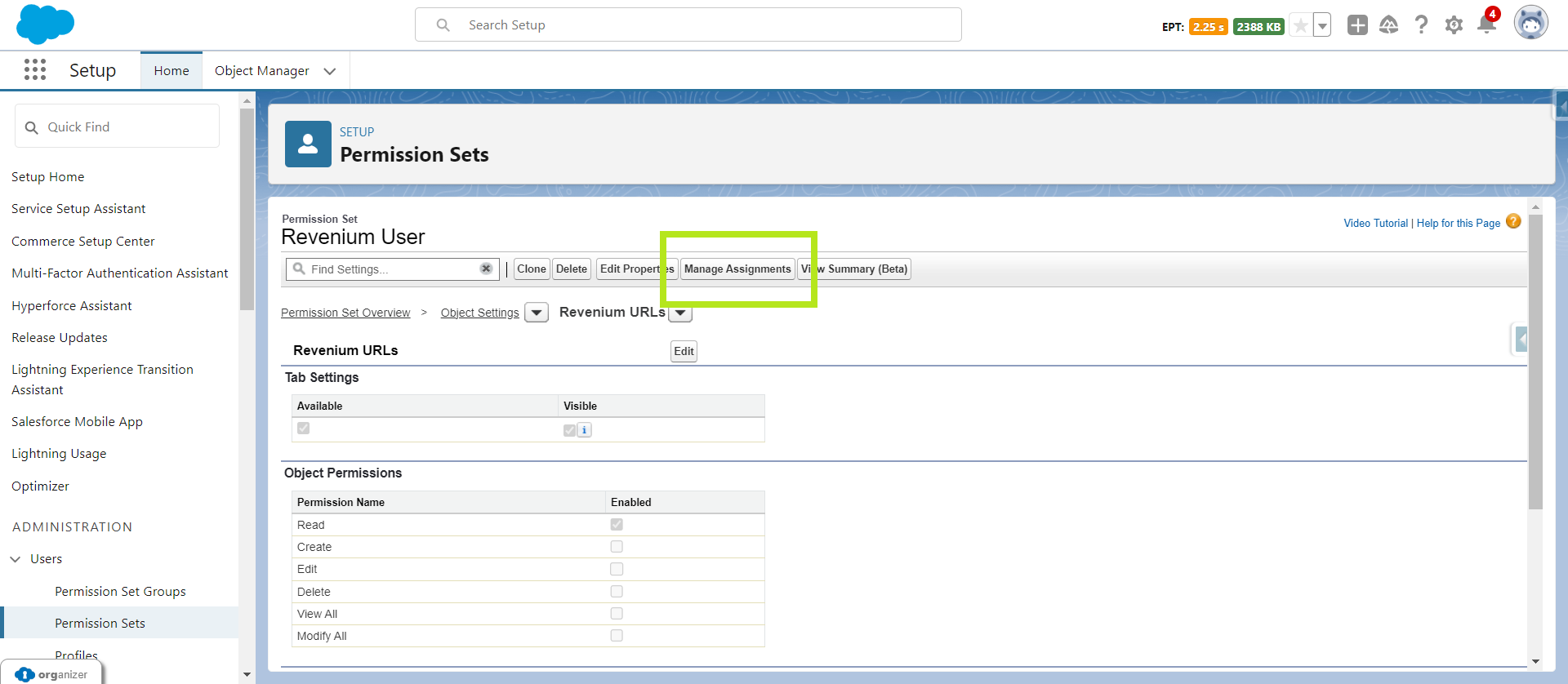
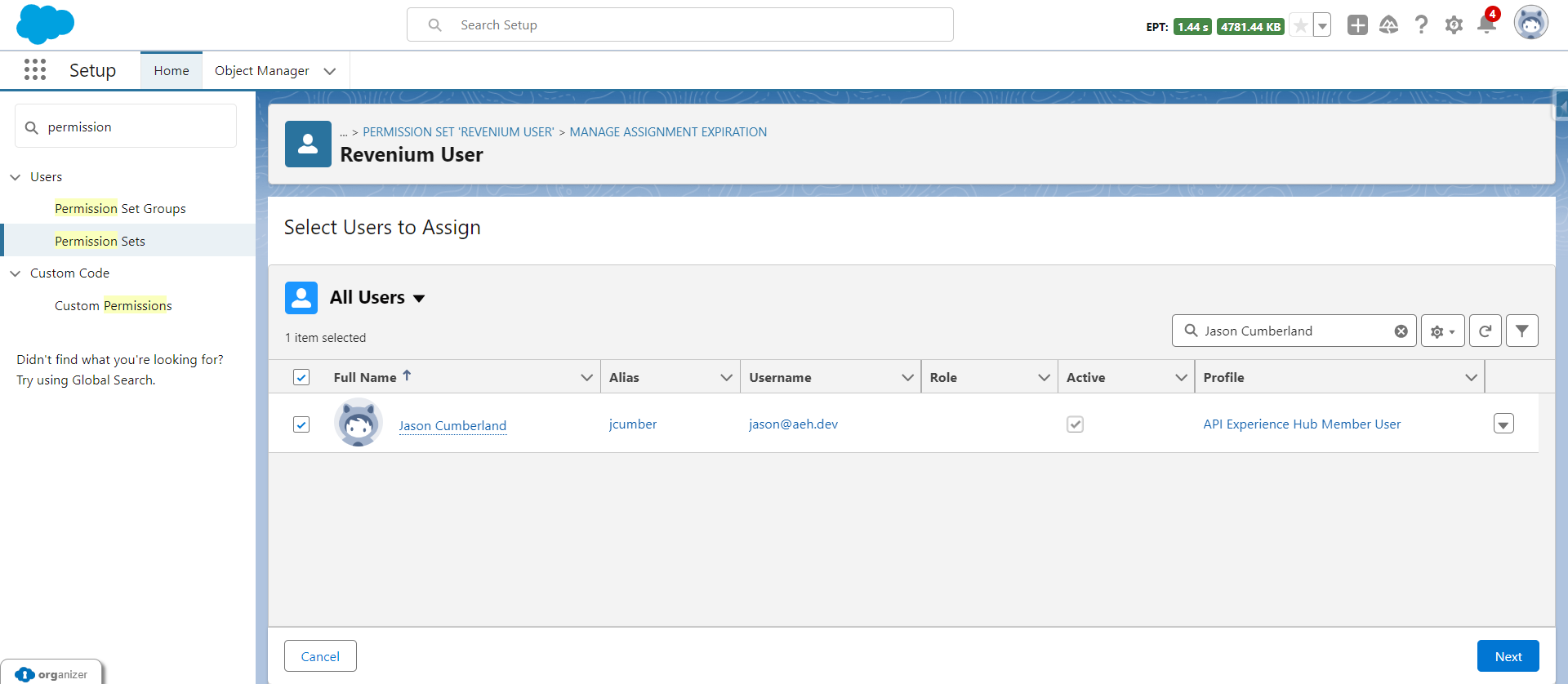
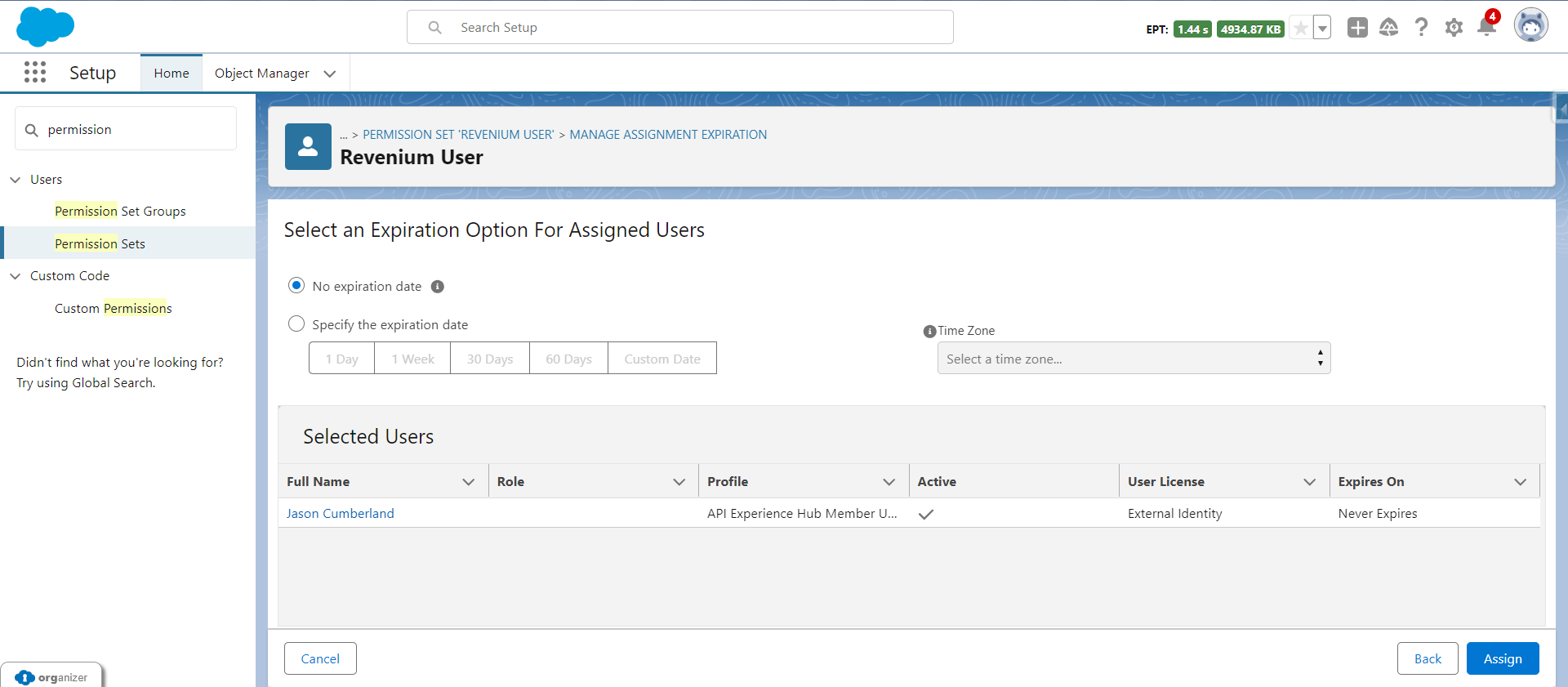
When using the Revenium Salesforce Package with a Salesforce Profile different from **System Administrator**, you need to assign the Permission Set **Revenium User** to the subscribers under that profile in order to make it work. To do this, go to Setup > Permission Sets > **Revenium User** > Manage Assignments (Figure 3). After that, assign the corresponding subscribers to it and click **Next** (Figure 4). Finally, select an expiration date if appropriate and click **Assign** (Figure 5).

<figure><img src="https://2470865788-files.gitbook.io/~/files/v0/b/gitbook-x-prod.appspot.com/o/spaces%2FSUfCzMW8qWeXstipFXEh%2Fuploads%2Fgit-blob-3621cf474cb414650b9eb2c668b06a1d6f63b308%2Fimage.png?alt=media" alt=""><figcaption><p>Figure 3. Permission Set's Manage Assignments button.</p></figcaption></figure>

<figure><img src="https://2470865788-files.gitbook.io/~/files/v0/b/gitbook-x-prod.appspot.com/o/spaces%2FSUfCzMW8qWeXstipFXEh%2Fuploads%2Fgit-blob-8bbd8845e2819761ae6259431d02c5fadea1f001%2Fimage.png?alt=media" alt=""><figcaption><p>Figure 4. Permission Set assignment.</p></figcaption></figure>

<figure><img src="https://2470865788-files.gitbook.io/~/files/v0/b/gitbook-x-prod.appspot.com/o/spaces%2FSUfCzMW8qWeXstipFXEh%2Fuploads%2Fgit-blob-44280206480bda2781a308aa65acdf04d11a251a%2Fimage.png?alt=media" alt=""><figcaption><p>Figure 5. Setting an expiration date for the Permission Set.</p></figcaption></figure>

## 5. Configuring the Guest User.

7. In Salesforce Setup, enter sites in the Quick Find box and select **All Sites**.
8. Next to the site that you want to access, click **Builder**.
9. In Experience Builder, click the **Settings icon** and select **General**.
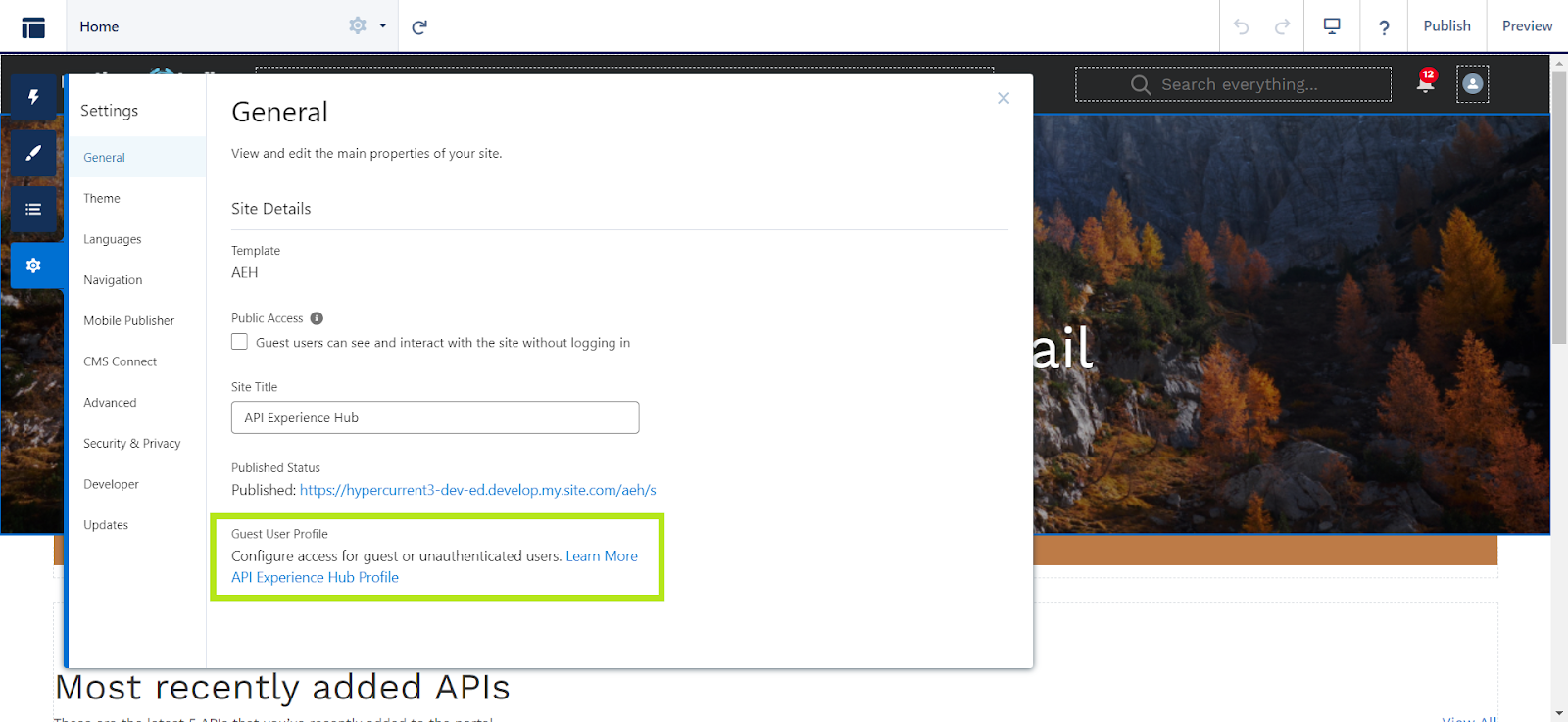
10. Under Guest User Profile, click the guest user profile link (Figure 6).

<figure><img src="https://2470865788-files.gitbook.io/~/files/v0/b/gitbook-x-prod.appspot.com/o/spaces%2FSUfCzMW8qWeXstipFXEh%2Fuploads%2Fgit-blob-9707319e2d153f123c02b442e7dca5df018c2e75%2Fimage.png?alt=media" alt=""><figcaption><p>Figure 6. Guest User profile configuration access.</p></figcaption></figure>

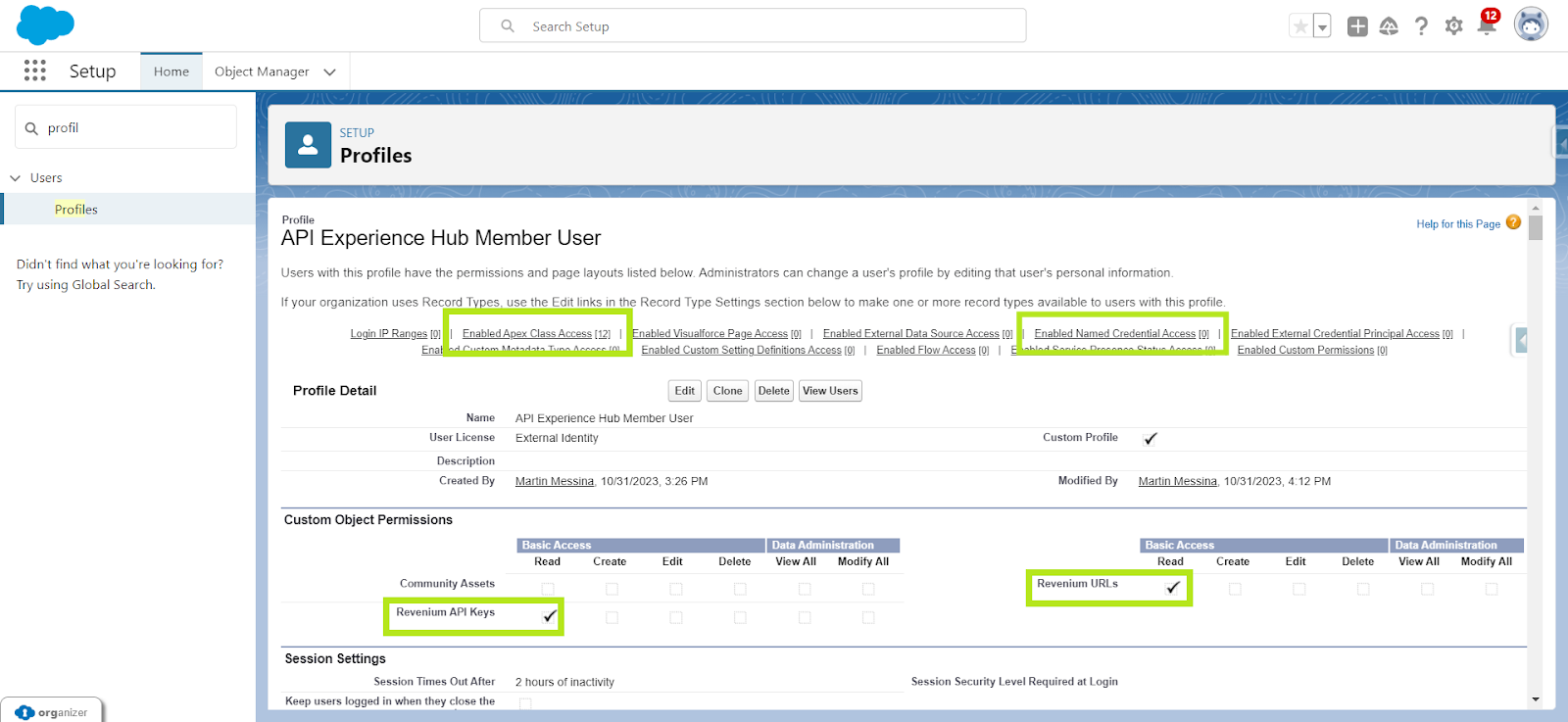
In the Field-Level Security section you can set the Read/Edit access for the Current RM Org field from the Subscriber object (Figure 7). Moreover, in this profile menu you will see the options to enable access to Apex Classes, Custom Objects and Named Credentials listed in Table 5 (Figure 8).

<figure><img src="https://lh7-us.googleusercontent.com/lrfhlBsGWdHp4ZwIflhtZqOrYUJU81dlL7JoRHBEKNe8bMod-iCYVW_Mb_24gbINtcBx0nvzrwpTa_bsr4drskfsIQey70gsQ94zFzMv-G3QKgBp7n1Lo74MKMbMV8JzURigk98S1cN3LbEU9DXOwmA" alt=""><figcaption><p>Figure 7. Current RM Org Field Level Security settings.</p></figcaption></figure>

<figure><img src="https://2470865788-files.gitbook.io/~/files/v0/b/gitbook-x-prod.appspot.com/o/spaces%2FSUfCzMW8qWeXstipFXEh%2Fuploads%2Fgit-blob-402149bb66edb13e348344d4349efcb0d03d1769%2FUntitled.png?alt=media" alt=""><figcaption><p>Figure 8. Edit Profile access to Apex Classes, Custom Objects and Named Credentials.</p></figcaption></figure>

Finally, allow the Guest Users to access Private Resources:

1. In the [site's Builder](https://help.salesforce.com/s/articleView?id=experience.community_designer_ui.htm\&language=en_US\&type=5), navigate to **Settings**, then select **General**.
2. Under **Guest User Profile**, click the profile name.
3. Click **System Permissions**.
4. Click **Edit**.
5. Select the **View Private Static Resources** permission and click **Save**.

## 6. Add products/APIs to your portal.

{% hint style="danger" %}
Check that the visibility of your APIs is set to Everyone, otherwise your portal member will not be able to access your APIs. You can do this from the **APIs in the portal** tab. [Follow these instructions to do that](https://docs.mulesoft.com/api-experience-hub/managing-apis#make-api-versions-visible).
{% endhint %}

In order to access products or APIs from Revenium's components in your site you need to add them from AEH's API manager. To do that, click on API Experience Hub in your Anypoint account and then add the products/APIs you want from Exchange, as shown in Figures 9 and 10.

<figure><img src="https://lh7-us.googleusercontent.com/gRNNsFDR5zVkOqWpNvNeFoLpjR_HmKidbLGJEGSXv_I6M3zoXdVidcPnRcIM9Dz0sKmRhtNU_N96G2PkzBGESuMCe_bUXww2EU4zDSNS5ROeJoN7Xy8IdVhYNJZP6MCvTSZwY7EBX6SG-99V5hnKAaw" alt=""><figcaption><p>Figure 9. Adding API to portal from Exchange.</p></figcaption></figure>

<figure><img src="https://lh7-us.googleusercontent.com/h0bdlyYLVAEsRJS0w5tDIjIQP4r7OE_mNkWE8V7YIggFKq0NoA9HU5EWsdsUHBFqI0rEy8hUri24QTIr9oF5cdL8SCPkGfauEcDGL_aGzAF4ZtEI5n6PEiZmQE2Sho-YmcEf2S5DtEhi6JiVXRcFId4" alt=""><figcaption><p>Figure 10. The API has been added to the portal.</p></figcaption></figure>

## 7. Set the Revenium "View Available Products" button

To ensure a smooth workflow for Subscribers requesting access to your API bundles, it's essential to include the "View Available Products" button directly on your Community Source detail page (Figure 11).

By placing this component on an sources details page, a button will appear that will do two things, 1) return the Subscriber to the catalog page including the “Drop-In Storefront” component, 2) filter the list of displayed products in the displayed storefront to show only products that contain the source on the original page that the user was browsing.

This allows Subscribers who are interested in using a particular API to understand which products they can purchase that include that API. By having the button readily available, Subscribers can efficiently access the storefront and request access to the desired API bundles within a single, streamlined experience.

<figure><img src="https://2470865788-files.gitbook.io/~/files/v0/b/gitbook-x-prod.appspot.com/o/spaces%2FSUfCzMW8qWeXstipFXEh%2Fuploads%2Fgit-blob-610e78b4863606f4c723238a38d23ebcac511401%2Fimage%20(136).png?alt=media" alt=""><figcaption><p>Figure 11. API Access Requester is put in the Community Asset detail page.</p></figcaption></figure>

You also need to provide the API name of the page your storefront is located [by following the instructions outlined in the API Access Requester documentation](https://docs.revenium.io/user-guide/integrations/mulesoft/commerce-lightning-web-components/api-access-requester). By default, the API Access Requester button redirects you to the Home page of your Experience Cloud site.

## 8. Add the Revenium "Payment Methods List" component

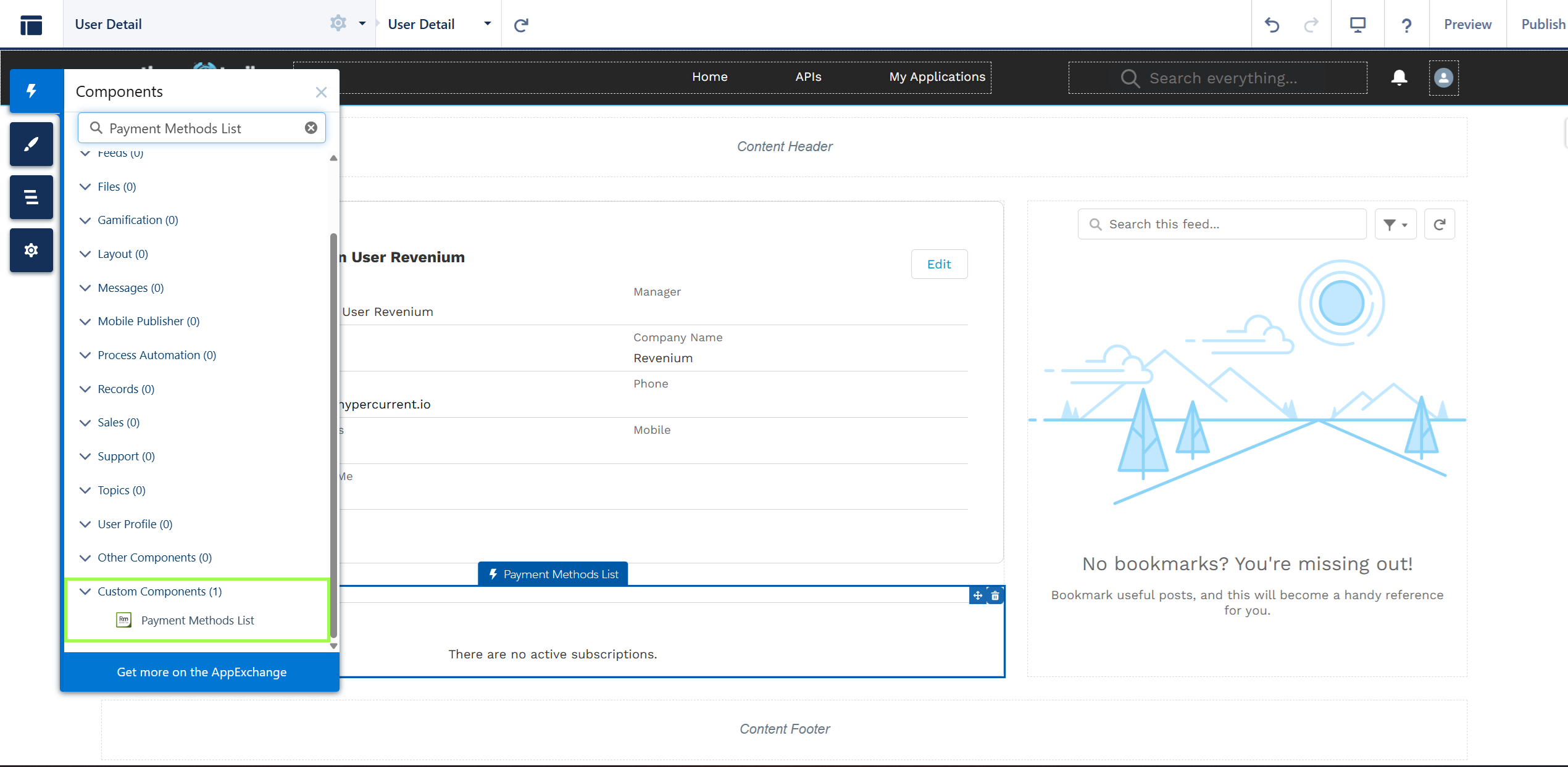
To allow users to easily manage their payment methods, include the **"Payment Methods List"** component on your site. In this example, it’s placed under the **User Detail page** within the Salesforce Experience Builder.

<figure><img src="https://2470865788-files.gitbook.io/~/files/v0/b/gitbook-x-prod.appspot.com/o/spaces%2FSUfCzMW8qWeXstipFXEh%2Fuploads%2Fgit-blob-f95e2fb618c6b5c38e9ad3108c44083be7680b5c%2FFigure12.png?alt=media" alt="Screenshot showing the &#x27;Payment Methods List&#x27; component placed on the User Detail page within Salesforce Experience Site Builder."><figcaption><p>Figure 12. Payment Methods List component placed on the User Detail page.</p></figcaption></figure>

This component enables users to view their saved payment methods and gives them the option to add or remove methods as needed. Positioning it on a profile or user-related page ensures that users can easily access and manage their payment information without unnecessary navigation.

**Resources**

[Anypoint API Experience Hub documentation](https://docs.mulesoft.com/api-experience-hub/)

[Anypoint API Experience Hub prerequisites](https://docs.mulesoft.com/api-experience-hub/prerequisites)